Curious how AI models like ChatGPT work? These powerful generative AI tools learn from vast datasets to generate human-like responses. However, ChatGPT is a pre-trained model that is not initially aware of specific business or personal information.
But to truly make ChatGPT work for your business, you need to train it on your own data—uploading documents, FAQs, and web pages into a knowledge base. Training ChatGPT on relevant data allows it to provide more accurate and tailored responses.
With no-code tools like the GPT builder, you can easily create a custom ChatGPT tailored to your specific needs. Thus delivering accurate answers and seamless integration. The Custom GPTs are specialized versions of ChatGPT tailored for specific tasks or domains.
So how do you train ChatGPT on your own data?
Let's get started!
How to Train ChatGPT on Your Own Data: Option 1. Use Built-in Features
This section is part of a comprehensive guide to training ChatGPT on your own data.
Feature 1: Custom Instructions
Before you begin, log into your OpenAI account to access all features.
This is the simplest option for ChatGPT Free/Plus. OpenAI lets you add two fields (“What would you like ChatGPT to know about you to provide better responses?” and “How would you like ChatGPT to respond?”) via the profile menu.
Data distillation condenses data into a personalized set of custom instructions for use in the Custom Instructions field.
Fill them with high‑level facts and specific details about your business, goals, and tone of voice. Providing detailed information helps ChatGPT generate more accurate and relevant responses.
This doesn’t load files, but it helps ChatGPT remember the context in new chats.
Feature 2: Custom GPTs (GPT Builder)
Users of ChatGPT Plus or Enterprise can create a specialized GPT without code. The basic steps include:
Step 1: Set up a new GPT. Open the Explore/My GPTs tab, click Create GPT in the top right corner, give it a name, and describe its purpose (e.g., “Travel Planner”).
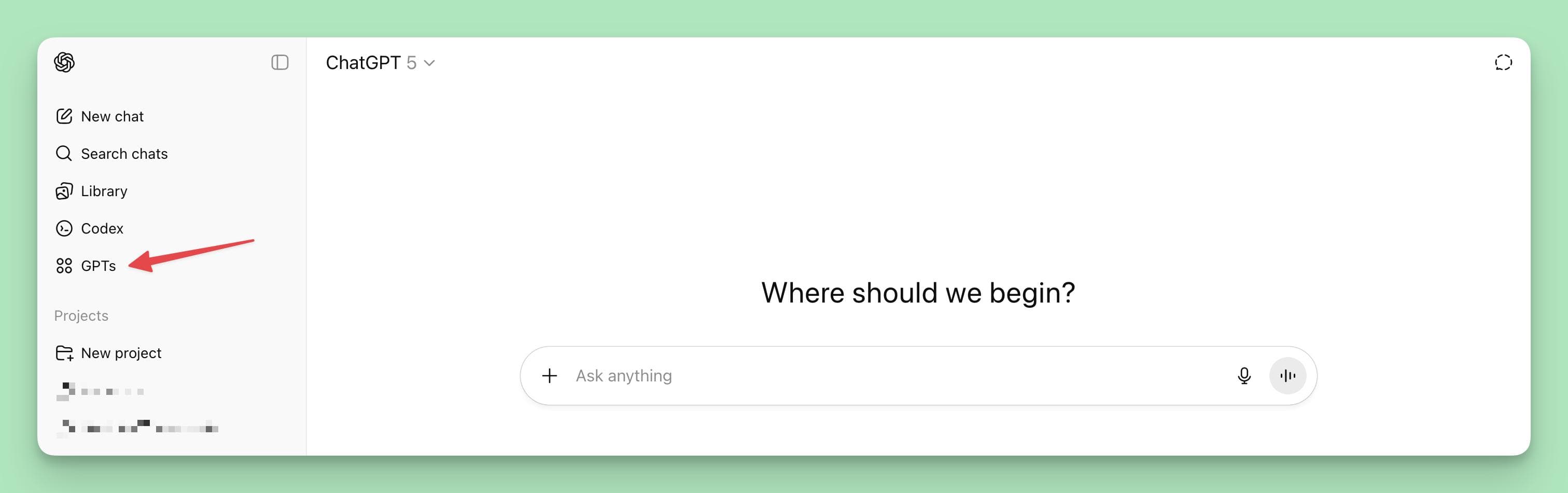
By doing this, you are effectively creating a new agent tailored to your needs.
Step 2: Upload your data. Attach PDFs, Word documents, FAQs, product manuals, web pages, or spreadsheets.
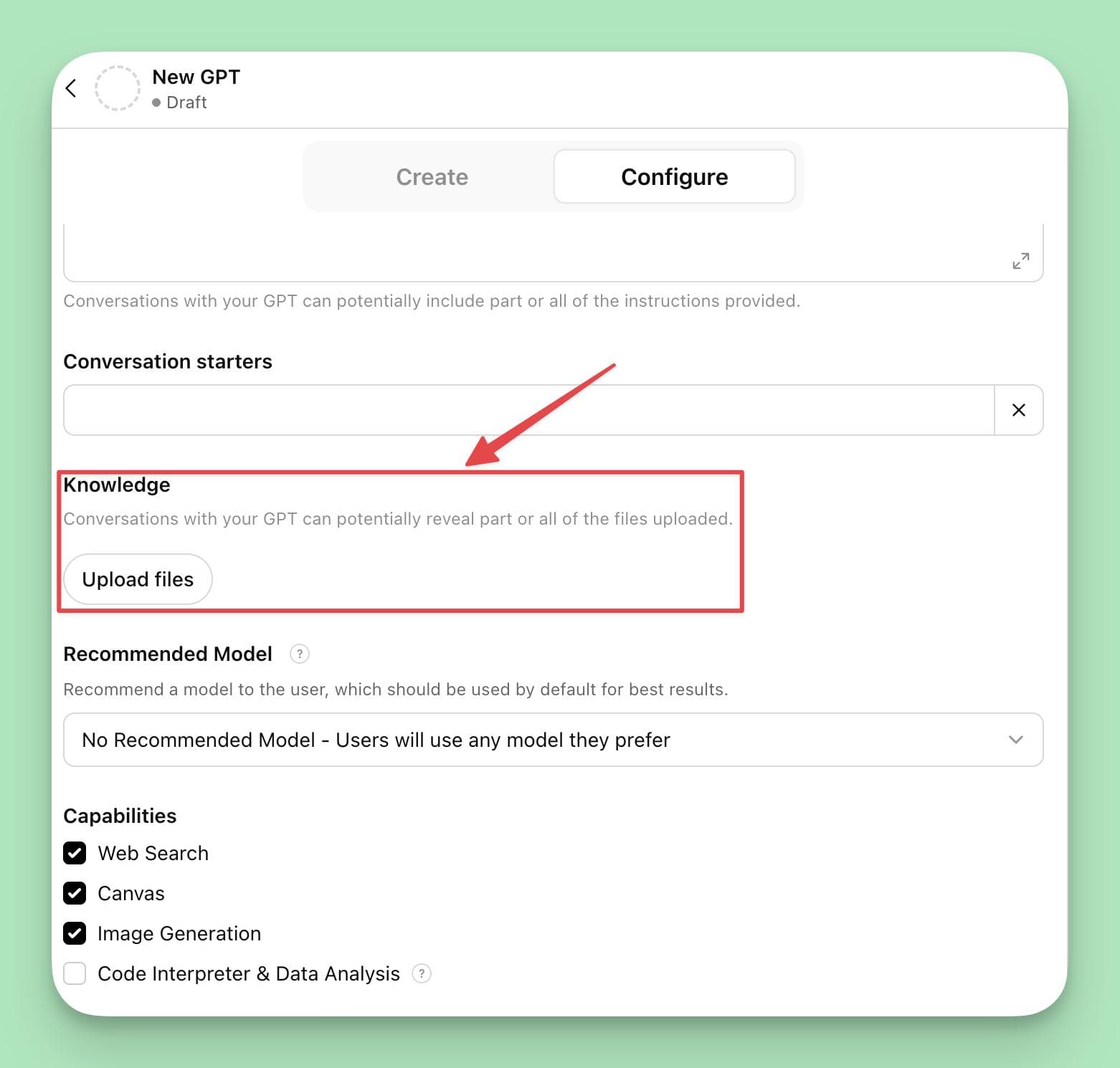
The knowledge base acts as a private reference. Write clear instructions explaining how the model should use the files and what tone to adopt.
Be sure to include as many relevant details as possible to improve the model’s performance. Quality of training data impacts the effectiveness of ChatGPT; clearer, more organized files yield better results.
Step 3: Test and refine. Ask the GPT domain‑specific questions. For example, if you’re building a customer support bot, try asking it to answer common customer queries using your uploaded FAQs.
If the answers are off, adjust the instructions or upload more relevant data. You cannot edit a file in place; you must delete and re‑upload it.
Step 4: Publish and share. When satisfied, make the custom GPT public or share a private link. This process results in your own custom ChatGPT.
Users can choose to share their custom GPTs via a weblink or embed them into a website for access.
Note the limitations:
- File sizes are restricted
- Branding options are limited
- Anyone with the link could see your data
Option #2: Use No‑code Chatbots to Upload Training Data
If you don’t have ChatGPT Plus or need more control, no‑code platforms such as Helply and Zapier Chatbots can create a chatbot from your documents.
These platforms offer a no-code solution for building chatbots from your data.
Typical steps include:
- Sign up and create a new agent. Register on the platform (e.g., Chatbase or QAnswer) and start a new agent project to build your chatbot from scratch.
- Add data sources. Upload files (PDFs, DOCX, CSV), paste text, or connect to websites, FAQs or Notion pages. Many platforms can scrape webpages to gather information, automatically breaking your files into passages and creating a vector index for retrieval. Follow best practices by uploading and curating high-quality, relevant data—such as website content, customer emails, internal reports, and presentations—to improve your chatbot’s performance and response accuracy.
- Configure prompts and personality. Set the bot’s role and tone, and optionally provide examples of good responses.
- Test and refine. Ask questions and inspect responses; remove irrelevant sections or adjust instructions until the bot reliably uses your data. Some platforms allow embedding the chatbot on your website with a small script.
- Deploy. Copy the embed code to your website or share a link with your team or customers. Many tools let you set up integrations with platforms like Slack, WhatsApp, Discord, or Zapier for seamless deployment across channels. Tools like QAnswer offer on‑premises deployment for better privacy; they let you define “agents” tailored to specific tasks and host them securely.
This method is quick, but you surrender control over how the model processes your data and may face subscription fees.
How to Train ChatGPT on Your Own Data Source With Helply
Helply is not just a basic “GPT builder”. It is an AI‑powered support platform that continuously trains a GPT‑based agent on your own documents, help desk tickets, and FAQs using its Knowledge Bridge and retrieval‑augmented generation (RAG) architecture.
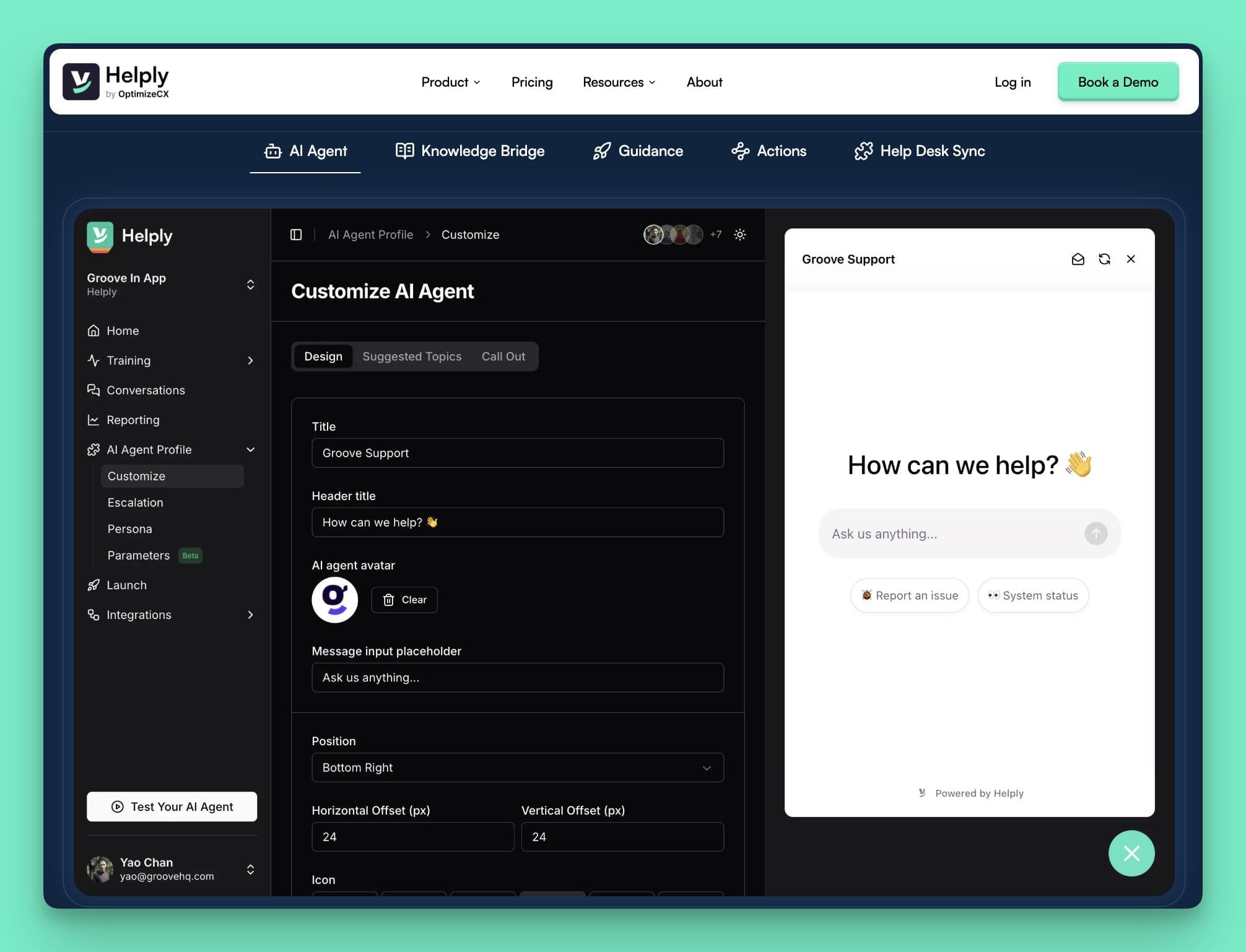
RAG is ideal for large or dynamic datasets, using a search mechanism to find relevant information from the user's data.
Here are the steps to train ChatGPT on your own data using Helply and its Knowledge Bridge feature:
Step 1: Sign up and connect your data sources
Create an account on Helply. In the dashboard, connect your existing support systems (help‑desk software like Groove, ticketing systems, CRM, or Google Drive) by granting API or OAuth permissions.
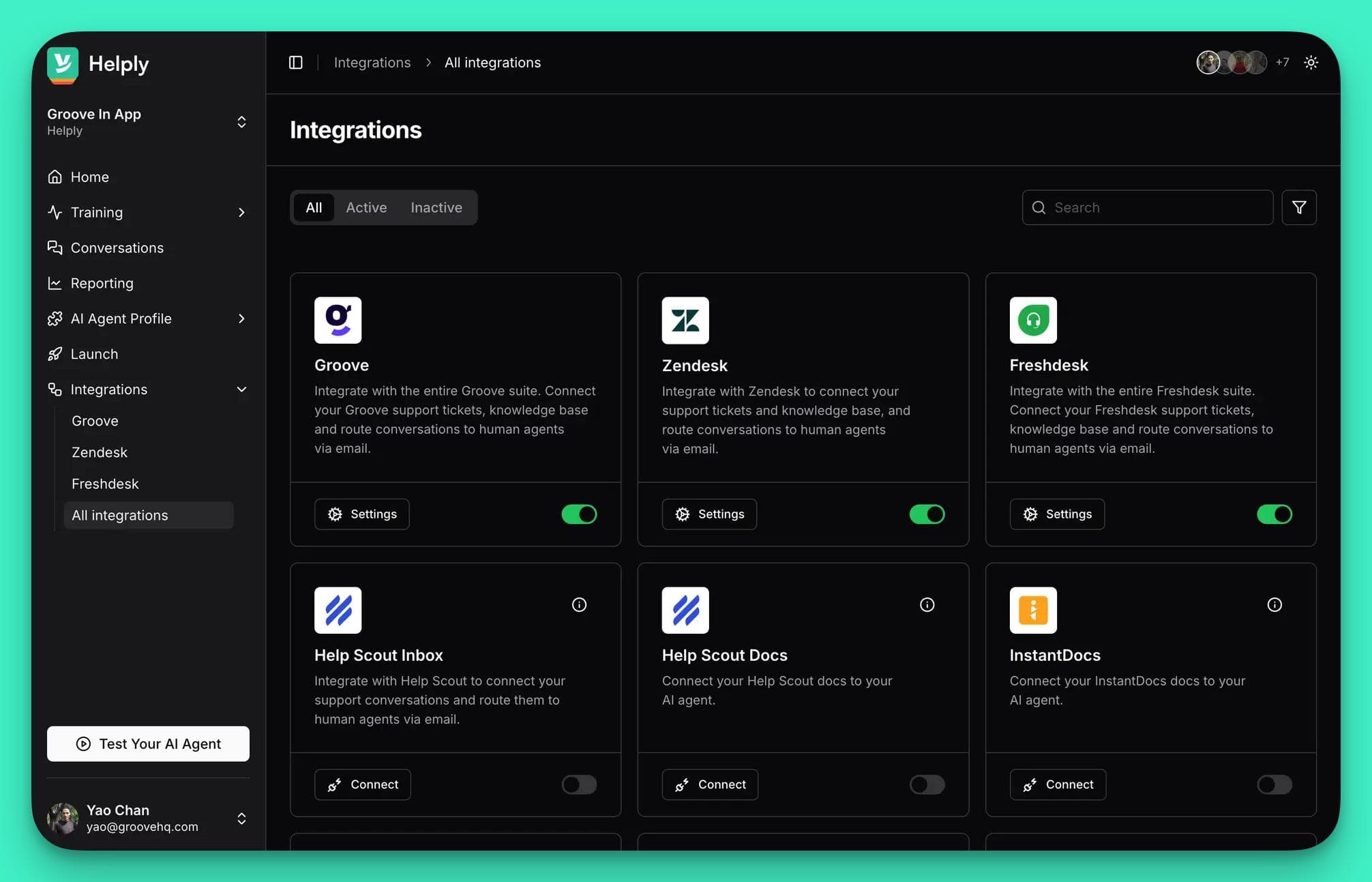
Helply’s Data Sync process automatically pulls data from past support tickets, knowledge‑base articles, and other documentation, allowing you to leverage an extensive dataset from your support history and documentation.
Step 2: Automated analysis of your support history
Once connected, Helply’s AI runs an Analysis stage. It scans all historical tickets and conversations to identify recurring questions, common issues, and trending topics.
This ensures the model understands what customers actually ask, not just what you think they need.
Step 3: Gap detection and scoring
Helply compares customers’ questions against your existing documentation. The Gap Detection stage highlights discrepancies between customer queries and what’s documented – essentially telling you which answers are missing or outdated.
Helply also gives your knowledge base a Knowledge Score, evaluating coverage and accuracy, and flagging areas for improvement.
Step 4: Optimize and fill knowledge gaps
Based on the gap analysis, Helply recommends updates or new articles to fill those gaps. You can create or edit documentation directly within Helply, or allow the AI to draft answers and articles for review.
For best results, provide detailed documentation and data, as including more details helps the AI deliver more accurate and relevant responses. This step transforms your static docs into a living, self‑improving knowledge base.
Step 5: Configure and test your AI agent
Define the agent’s tone and behavior (friendly, formal, concise, etc.) and specify escalation rules for complex issues.
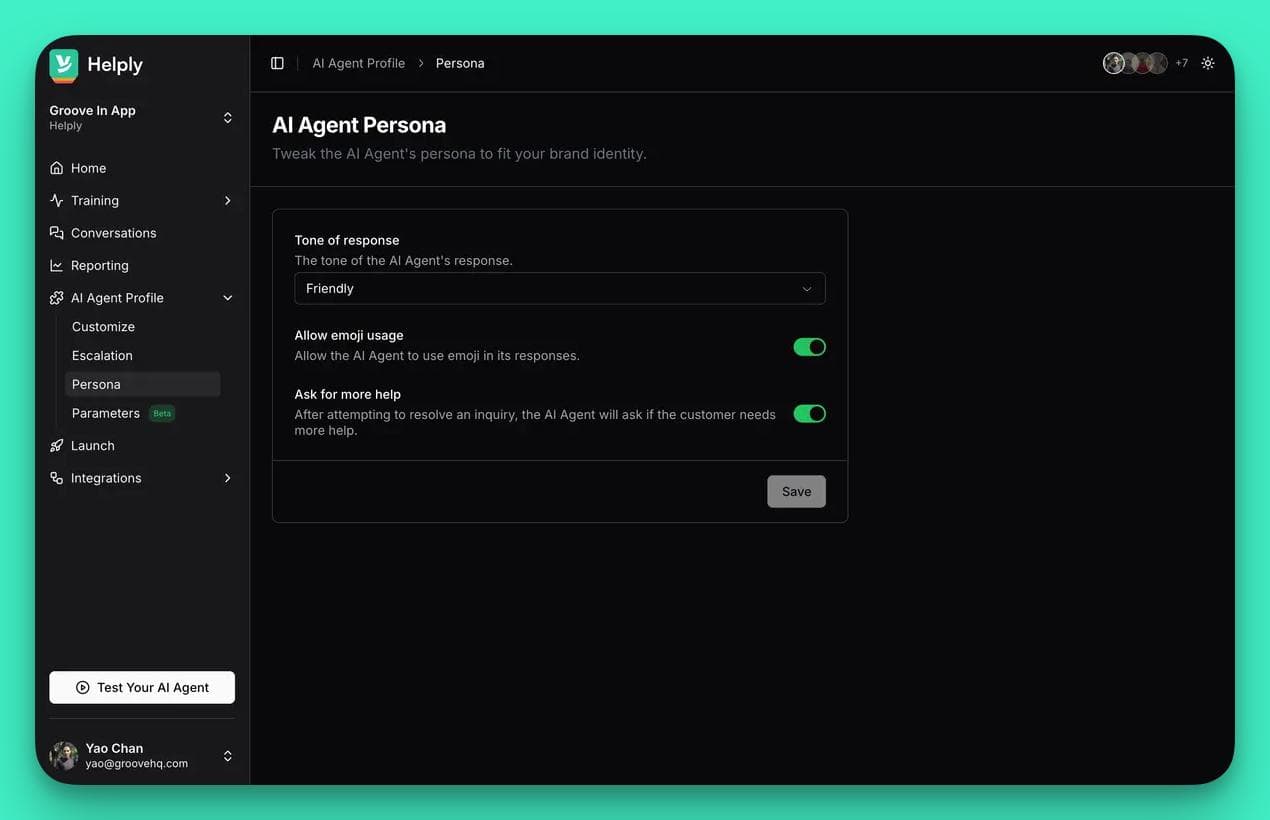
Because Helply uses RAG, it retrieves relevant snippets from your synced knowledge base and feeds them to a GPT‑4‑level model, ensuring answers are grounded in your data.
Use Helply’s sandbox mode to simulate customer conversations and refine responses before going live. The result is a trained model tailored to your business needs.
Step 6: Deploy across channels
Once satisfied, integrate the AI support agent into your website, chat widget, email channel, or Slack. Helply can also perform actions such as creating tickets, updating a CRM, or sending emails via its AI Actions.
Customers receive accurate, helpful replies based on your documentation, and the agent can hand off to a human when needed.
Step 7: Measure and iterate
Helply’s dashboard tracks key metrics like containment rate (how many tickets are resolved by the AI), first‑contact resolution, and customer satisfaction.
Because the system continuously syncs new tickets and knowledge, your AI agent keeps learning, and your Knowledge Score improves over time.
By following these steps, Helply turns your documents and support data into a self‑improving GPT‑powered customer service agent.
Its no‑code setup, continuous learning, and built‑in analytics make it a practical way for businesses to “train ChatGPT on your own data” without the complexity of building a custom GPT or managing vector databases.
Option #3: Use the OpenAI Assistants API (retrieval‑augmented generation)
Developers can programmatically feed their data to ChatGPT through the OpenAI API. This method uses the OpenAI API to interact with and customize ChatGPT, allowing for advanced integration and flexibility. To train ChatGPT using the OpenAI API, you need to create an account and generate an API key.
Before starting, log into your OpenAI account to access the necessary API features.
Here's the general process:
- Prepare your documents. Organize content into clear text files; break long documents into smaller chunks (messy spreadsheets yield poor retrieval).
- Upload files. Use the openai.files.create API call with purpose “assistants” to upload your documents.
- Create a vector store and assistant. The API automatically converts your files into a vector index. When creating the assistant, specify the model from OpenAI's GPT models (e.g., gpt-4-turbo), provide system instructions, and include the vector store under the tool_resources.retrieval field.
- Create a thread and add a message. Start a conversation (thread), then post a user message with your question. The assistant will search the vector store to ground its response.
- Run and poll for results. Execute the run; then check the run status until it completes and read the assistant’s messages.
- Iterate. If answers are poor, refine your data, adjust instructions, or update the retrieval parameters.
This method keeps your data off ChatGPT’s training pipeline; it is only used at inference time and suits private or proprietary content.
By leveraging OpenAI's GPT architecture through the API, developers can build highly customized AI assistants tailored to specific needs.
Option #4: Fine‑tune an OpenAI model (advanced)
Fine‑tuning creates a new trained model that incorporates patterns from your examples and is customized to your data.
The process is more technical and resource‑intensive:
- Prepare a dataset of prompt–completion pairs – Each line should contain a {“prompt”: “…”, “completion”: “…”, “metadata”:…} JSON object. The examples should reflect the style and tasks you want to teach.
- Convert to JSONL – Save all pairs in a .jsonl file and verify formatting (each JSON object per line).
- Obtain an API key and upload the dataset – Use the OpenAI API or CLI to upload your file with the purpose “fine-tune”.
- Create a fine‑tuning job – Specify the base model, such as OpenAI's GPT model (e.g., gpt-3.5-turbo), and hyperparameters. The job will run asynchronously; monitor its status and costs.
- Deploy and test – After the training process, query the fine‑tuned model. You pay per request and per training token. Fine‑tuning is useful for structured outputs or a specific writing style, but cannot teach the model entirely new knowledge; use retrieval for factual data. Uploading high-quality data is preferable to a large quantity of unhelpful documents during training.
Fine‑tuning costs money, takes time, and requires careful curation. It is generally unnecessary for most question‑answering tasks.
Option #5: Build a Prompt Library (Lightweight Approach)
Rather than uploading custom data, marketers sometimes build “prompt libraries.” You can create a shared document with your brand tone, product benefits, and FAQs.
Then write prompt templates (e.g., blog posts, social posts, customer‑service replies) referencing this context, and include example prompts to guide team members in using ChatGPT effectively.
Storing these templates in a tool like Notion or InstantDocs knowledge management software makes it easy for a team to reuse them with ChatGPT.
Important considerations
- Data quality. Regardless of method, the model will only be as good as the data you provide. Remove duplicates, outdated policies, and private information before uploading. Follow best practices for curating and maintaining your data to ensure high-quality, relevant content.
- Privacy & compliance. Uploaded documents may leave your environment, so verify how the platform stores and uses them. Solutions like QAnswer offer on‑premises deployment and GDPR compliance. Privacy practices should be reviewed when using third-party tools or APIs with personal data.
- Cost & maintenance. Custom GPTs and no‑code tools require a ChatGPT Plus or platform subscription. API and fine‑tuning usage is billed by tokens. You must also maintain the knowledge base by deleting old files and uploading new ones when policies change.
Train ChatGPT on Your Own Data With Helply Today!
You cannot retrain ChatGPT’s core model on your own, but you can customize it using your proprietary documents.
The simplest method is to provide custom instructions or build a Custom GPT with uploaded files.
No‑code platforms like Helply handle indexing and provide shareable chatbots.
If you are a developer, you can use the Assistants API for retrieval‑augmented question answering. Also, advanced users can fine‑tune a base model with prompt–completion examples.
Regardless of method, good data preparation, clear instructions, and regular testing are critical for a high‑performing customized ChatGPT.
Book a FREE demo, to get started with Helply AI agent for customer support today!
About the author

Bildad Oyugi
Head of Content
Bildad is a digital marketing expert with over 5 years of experience in copywriting, content marketing, and editing. Outside of work, he enjoys videography and spending time with his family.


