Key Takeaways:
- Run four basic checks before anything else: refresh, clear the cache, log out and back in, and restart. You can rule out the most common causes in minutes.
- Framing every issue as expected outcome versus actual outcome gives agents and engineers a shared language and shortens the diagnosis process.
- Write knowledge base articles from recurring ticket patterns, and you can prevent a larger share of repeat tickets each month.
- A technical issue from a high-value customer near renewal is a churn signal. Flag it to the account owner before the renewal date.
- First-attempt fix rate and KB deflection rate matter more than raw time-to-resolution for measuring troubleshooting effectiveness.
You've seen this ticket before. The customer writes "It's broken" and sends no screenshot or error message.
You ask clarifying questions, and the customer replies six hours later: "Never mind, it's working now."
Meanwhile, three other customers hit the same integration error this week. Each time, a different agent picked it up with no notes to work from.
The first agent fixed it without writing it up, so later agents rebuilt the fix alone. The customer pays for the missing write-up by explaining the issue to someone new.
At Kameleo, engineers answered support tickets, and the hours they spent came out of the roadmap. Founder and CEO Tamas Deak recalls: "We'd solve the same Playwright edge case five times and start from scratch every time."
Rebuilding fixes costs your team hours of duplicate work every month. Your agents take longer to reply, and customers start to wonder if they picked the right product.
Your team can troubleshoot technical issues faster with one routine: five steps, a canned first reply, and a flowchart for your Slack channel. Then write each fix into a help article so the next customer can find the answer before filing a ticket.
The 5 Troubleshooting Steps for Technical Issues
To troubleshoot a technical issue, work through these five steps in the same order every time:
- Run basic checks: refresh, clear cache, log out/in, restart the device.
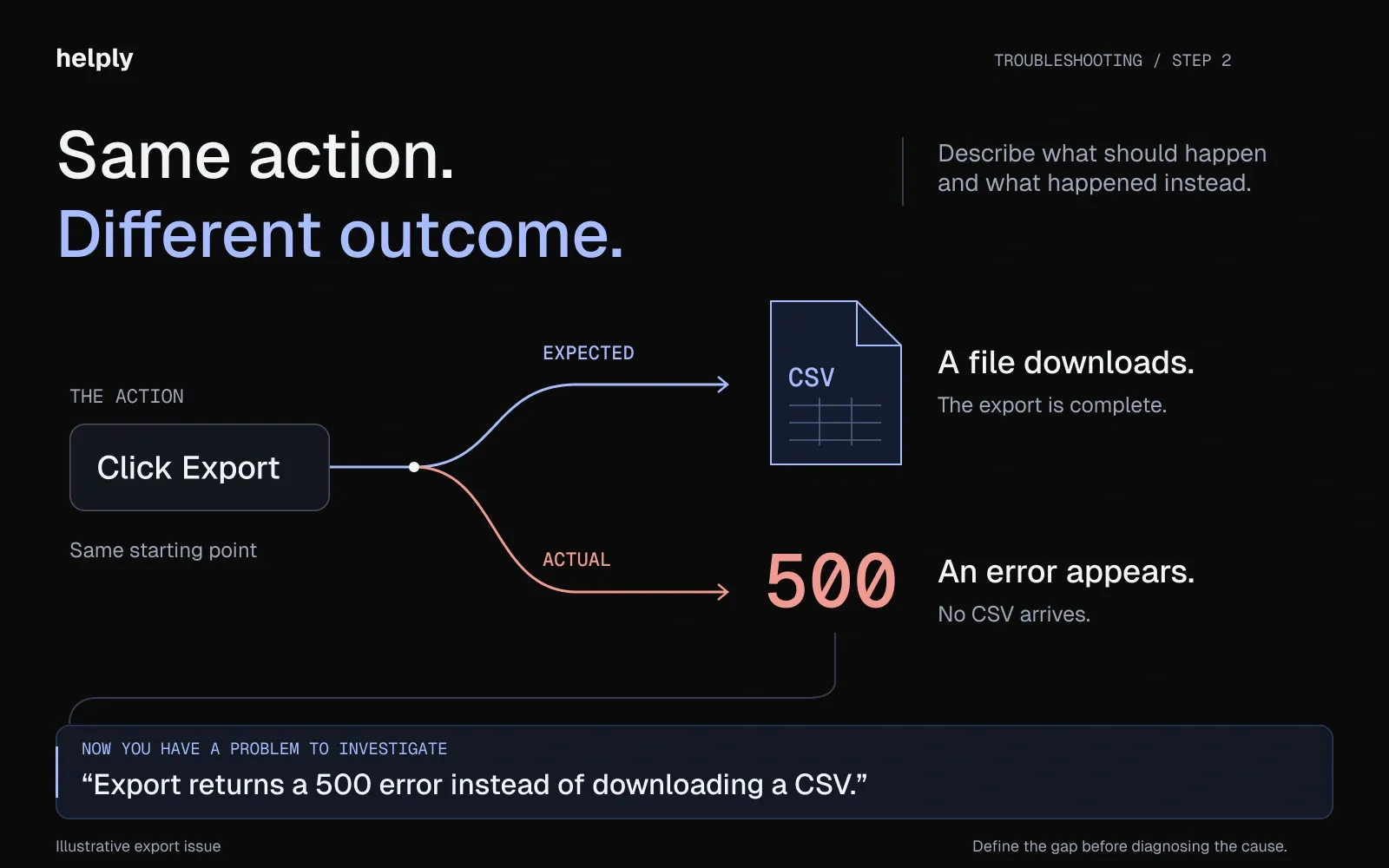
- Define expected vs. actual outcome: clarify what should happen and what is happening instead.
- Gather evidence: screenshots, screen recordings, error messages, console logs.
- Reproduce the issue: follow the customer's steps and make the bug happen again on your end.
- Escalate with context: create a detailed bug ticket, or let AI resolve it if it matches a known pattern. Then confirm the fix with the customer.
CompTIA lists seven steps in its troubleshooting methodology and Network+ exam objectives, and six in its A+ objectives. Both start by identifying the problem and end by verifying the fix and documenting what you found. Support teams can condense CompTIA's method into the five steps below for customer-reported software issues: start simple, then isolate the cause.
Step 1: Run Basic Checks First
Start with four basic actions. Refresh the page, clear cache and cookies, then log out and back in. If that fails, restart the device.
Many customers assume the product is broken, and agents may worry the checks sound like a brush-off. Those four checks clear the most common causes: stale browser sessions, cached files with outdated code, overloaded device memory and expired login tokens.
Ask the customer to confirm all four checks before you investigate. To clear the cache and cookies in each major browser:
- Chrome: Open the three-dot menu and choose Delete browsing data. Pick a time range, select Cookies and other site data and Cached images and files, then click Delete data.
- Firefox: Go to Settings > Privacy and security > Clear browsing data. Set When, check Cookies and site data and Temporary cached files and pages, then click Clear.
- Safari: Safari > Settings > Privacy > Manage Website Data > Remove All.
- Edge: Press Ctrl+Shift+Delete to open Clear browsing data. Pick a time range, select Cookies and other site data and Cached images and files, then click Clear now.
If a check fixes it, confirm with the customer, note which check worked and close the ticket. If not, move to Step 2.
Step 2: Frame the Problem as Expected vs. Actual Outcome
Engineers use this framing to diagnose bugs. Borrow it, and your escalations arrive in a format engineers know. Start with two questions:
What was the expected outcome? Example: the customer clicks the "Export" button and a CSV file downloads.
What was the actual outcome? Example: the customer clicks "Export" and sees a 500 error, or nothing happens, or the page freezes.
This framing forces specificity. "It's broken" gives you nothing actionable. "I expected a CSV download and instead got an error" hands you the starting coordinates for diagnosis.
If the customer hasn't framed it, ask: "Can you walk me through what you were trying to do and what happened instead?"
Asking what the customer expected and what happened instead turns a vague complaint into a structured problem statement. Google's SRE book says an effective problem report states the expected behavior, the actual behavior, and, if possible, how to reproduce it. Then ask what changed before the problem started, such as an update, a new extension, or a new setting.
Step 3: Gather Evidence (Screenshots, Console Errors, and Context)
Once you've confirmed the issue is real, collect the evidence engineering will need if you escalate. Gathering it upfront can save several rounds of back-and-forth email.
Screenshots and screen recordings. Ask for a screenshot, a screen recording or a Loom walkthrough, since a recording shows the clicks customers forget to mention. On Windows 11, Win+Shift+R records a screen region, and on a Mac, Cmd+Shift+5 opens the recording tools.
Error messages. Ask the customer to copy any text from a popup, banner or alert box word for word. Engineers search the code and logs for that exact string, and a paraphrase won't match.
Browser console errors. Most customers don't know the console exists, though it logs errors the page doesn't show. To open it:
- Chrome: Cmd+Option+J (Mac) or Ctrl+Shift+J (Windows)
- Firefox: Cmd+Option+K (Mac) or Ctrl+Shift+K (Windows)
- In Safari > Settings > Advanced, turn on Show features for web developers. Then choose Develop > Show JavaScript Console.
- Edge: Cmd+Option+J (Mac) or Ctrl+Shift+J (Windows)
Red text in the console indicates errors. Ask the customer to screenshot everything in red and send it over. Engineers can often diagnose the issue from a single console error without any further conversation.
Device and browser details. Ask for the operating system, the browser name and version, and any active browser extensions. Extensions can interfere with how a web app loads or displays, so they're among the first things engineers check.
Step 4: Reproduce the Issue
"Can you reproduce it?" is the question that separates a bug from a fluke.
Reproduction means you (the agent) can make the same issue happen on your end by following the same steps the customer described.
Log into a test account, or if your helpdesk provides account-level context, mirror the customer's setup. Follow their exact steps. If the issue appears, you now have a confirmed, repeatable bug that engineering can investigate without going back to the customer.
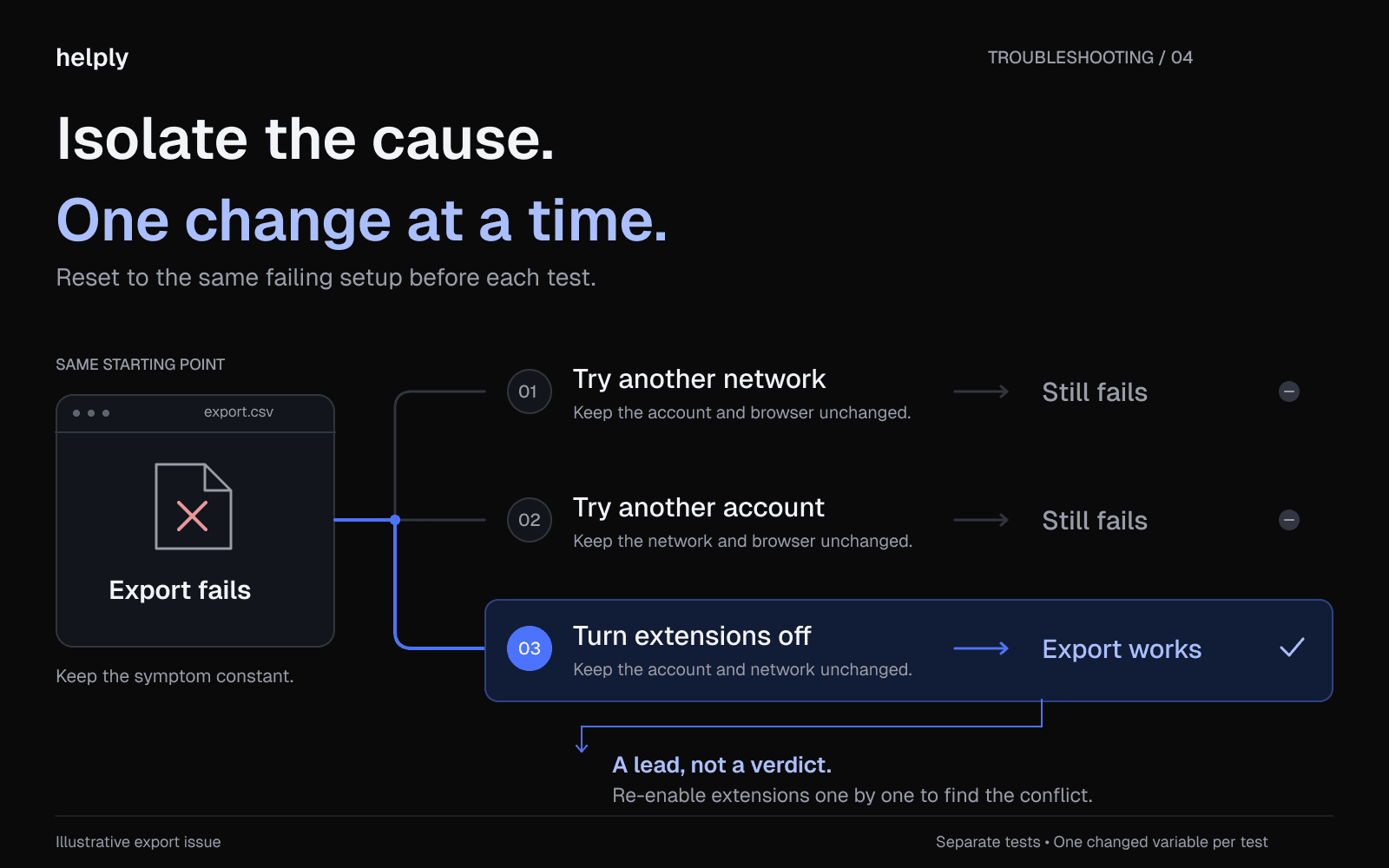
If you cannot reproduce it, the issue is likely environment-specific. Start isolating:
- Try a different browser. If the issue disappears, the original browser is the variable. Check for conflicting extensions.
- Log in as a different user. If other users on the same account do not see the issue, it is account-specific or role-specific.
- Compare to a working version. Pull up the same feature on a test account or demo environment. Note the differences between the broken and working states.
Change one thing at a time. If you change the browser, the user, and the network all at once, you will not know which variable fixed it. Systematic isolation is slower in the moment but faster overall.
Step 5: Escalate With Full Context (or Let AI Handle It)
Two paths open here depending on whether the issue matches a known pattern.
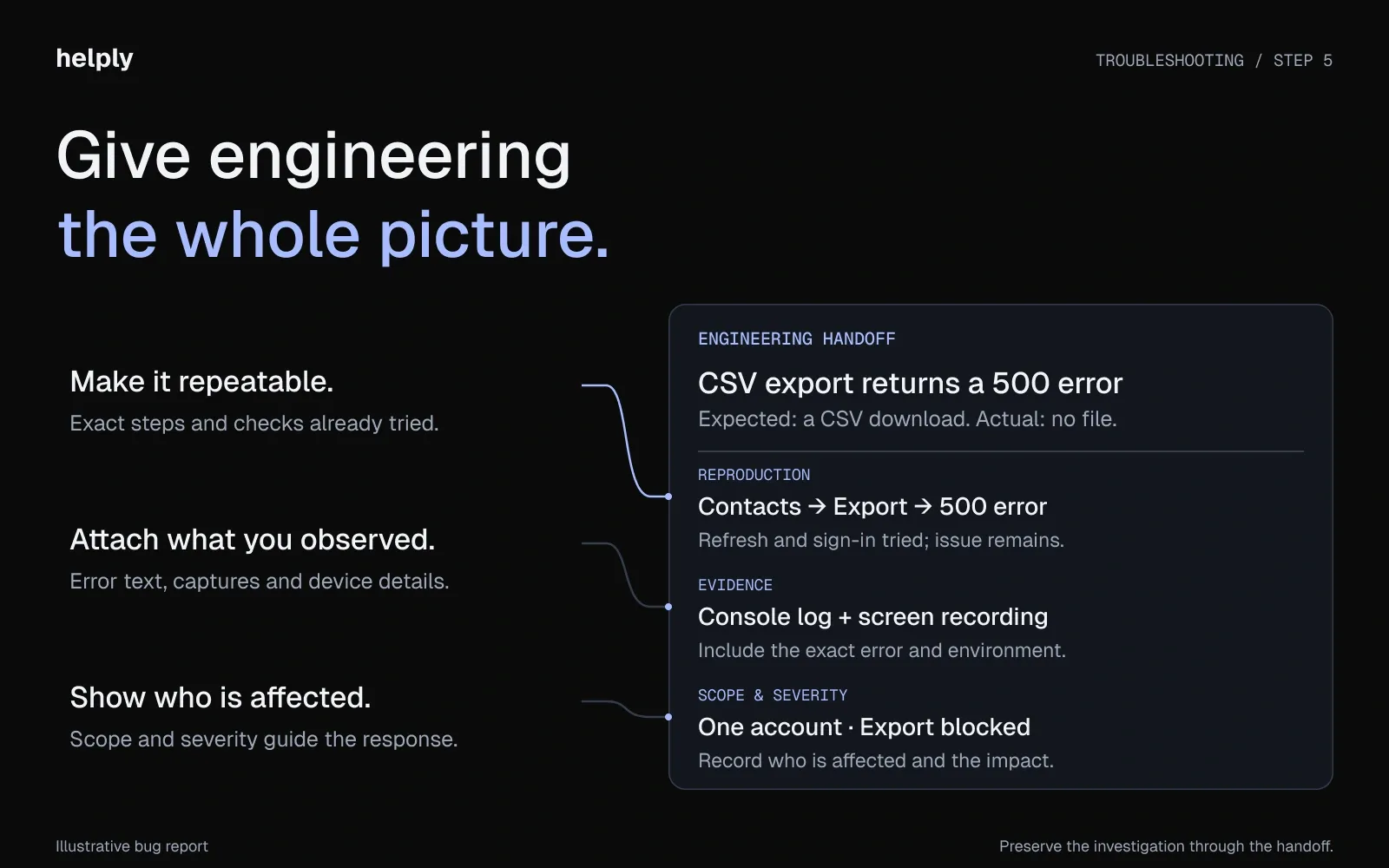
Path A: engineering escalation. The issue is new, confirmed and reproducible. Create a bug ticket with everything you gathered: expected and actual outcome, screenshots, console errors, reproduction steps, device details and severity.
Treat it like a restaurant order: support writes the ticket and engineering cooks. If the slip says "food," the cook has to come back and ask.
A good bug ticket includes:
- One-line summary (e.g., "CSV export returns 500 error for accounts with 10,000+ contacts")
- Expected outcome
- Actual outcome
- Steps to reproduce
- Evidence (screenshots, console logs, screen recording link)
- Affected scope (one user, one account, all users)
- Severity (blocking, degraded, cosmetic)
Once you connect and configure Linear, Jira or GitHub Issues, Helply's Assist Agent can file the bug ticket from the conversation. Engineers get the conversation and reproduction details with it, so they can start without going back to the customer. You can link later reports to the same issue to show them every affected customer.
Path B: AI resolution. The issue matches a pattern the system has seen before. An AI agent recognizes the pattern and pulls the relevant KB article or past resolution.
It either resolves the ticket itself or drafts a reply for the agent to review. The agent confirms the draft fits this customer's context and sends it.
Path B depends on what your team recorded last time. Save each fix to the knowledge base, and the next person or AI agent who gets that issue starts with the answer.
Helply's Support Agent can resolve known-pattern tickets end-to-end. If it can't resolve something with confidence, it escalates with the investigation and customer context already prepared.
After either path, verify and document. Follow up and ask the customer to retry the original task and confirm it works. Then record the cause, the fix, and the customer's confirmation in the ticket, so someone can turn it into a help article.
If the bug hit many accounts, send an apology email once engineering ships the fix.
Troubleshooting Template: A Canned Reply You Can Copy Today
Standardize your troubleshooting process by saving this as a canned reply in your helpdesk. Insert the template for each new report and customize the greeting.
Subject: A few checks so we can fix this
Hi [FIRST NAME],
Thank you for reporting this. I'll stay on it with you until we fix it.
Before I dig in, could you confirm you've tried these?
- Refresh the page
- Clear your browser cache and cookies
- Log out and back in
- Restart your device
If it isn't working after those checks, could you send me:
- A screenshot or screen recording of what you see
- The exact error message (if one appears)
- What browser and operating system you are using
- What you were trying to do and what happened instead
I'm checking whether we've fixed this for anyone else, so you may hear from me before you reply.
Talk soon,
[YOUR NAME]
Customize this for your product. Mobile apps need different basic checks than web apps, and API products need different evidence, such as request IDs and response codes. Keep the same order: basic checks first, evidence second.
For later replies, such as confirming a bug or sharing a workaround, adapt these issue resolution email templates.
How AI Changes the Troubleshooting Workflow in 2026
You keep the same five steps, and AI takes on more of the work between them. It can sort new tickets, draft replies and resolve issues that match a known pattern.e gaps.
AI triage
Before a human agent reads a new ticket, AI categorizes it by issue type, severity, and affected product area.
It can pull the customer's context from connected tools: plan, billing, recent usage, ticket history and CRM notes.
The agent who picks up the ticket already knows who they are talking to and why it matters.
AI drafts
Helply's Assist Agent can spot the issue pattern and suggest a reply. The draft references the customer's account, the steps they have already tried, and the resolution that worked for similar issues.
It can read product and usage data from the tools you connect, including your own API. Assist can then check your docs against what happened in this customer's account. A person on your team reviews the draft, adjusts the tone and sends it.
AI resolution
If your escalation rules let it act, Helply's Support Agent can resolve tickets it matches to a known pattern with high confidence. It can check the account, take a supported action through a connected tool and reply with the result.
Kameleo builds an antidetect browser for engineering and automation teams, so its tickets involve Selenium, Puppeteer and Playwright code. Helply's Support Agent investigated those tickets across documentation, past resolutions and logs to reason about the root cause.
The Support Agent resolved 79% of Kameleo's inbound questions end to end. Tamas Deak says: "It doesn't deflect technical questions, it resolves them, and it finally remembers how."
In Helply, you pay for AI work and nothing per user. Each AI action draws from a monthly block of credits, and deeper investigations cost more. You spend no credits on retries, failed actions or drafts your team discards before a customer sees them.
The Knowledge Flywheel: How to Turn Resolved Tickets Into Help Articles
In most support teams, a ticket ends when the agent fixes it. The next customer with the same issue starts from zero, so the cost per ticket stays flat.
The knowledge flywheel runs in this order:
- Agent resolves a technical issue using the 5-step process.
- A Background Agent detects the pattern. This is the fifth ticket this month about the same webhook integration error. Helply's Insights Agent groups conversations into themes, and you can build a Bug Detection Agent that finds clusters of similar issues.
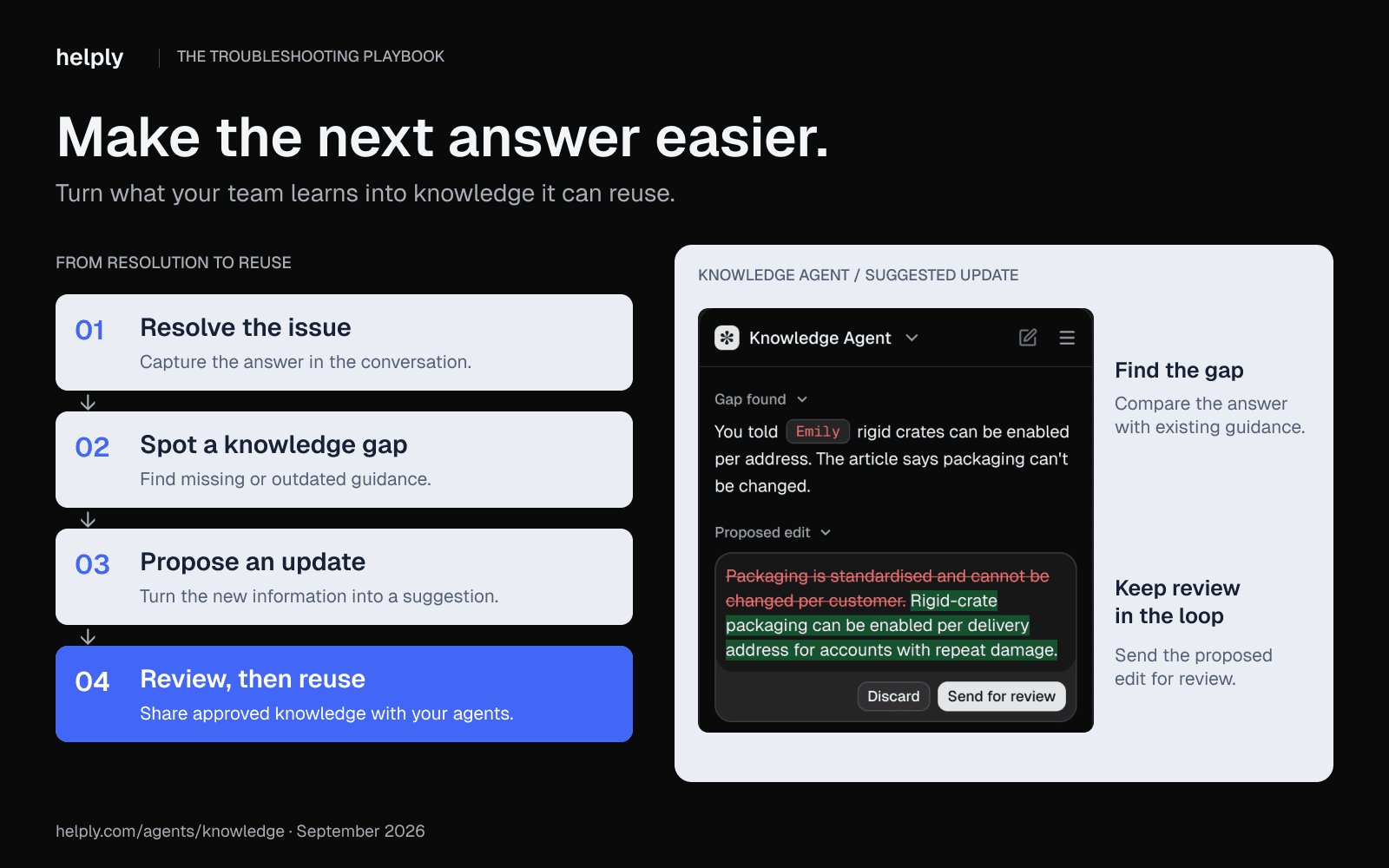
- AI drafts a KB article from the resolution. It structures the problem, the diagnostic steps and the fix into a searchable article. Helply's Knowledge Agent can suggest it from the closed ticket, and your team reviews it before publishing.
- The next customer hits the same issue. The article appears in search before they submit a ticket, and they fix it themselves.
- Self-service handles more. Each month, a larger share of volume never reaches the queue. The team's effective capacity grows without adding headcount.
The math is straightforward once you know your own cost per ticket:
Say you handle 200 tickets a month at $14 each. If self-service prevents 30% of them, that's 60 tickets and $840 a month, or $10,080 a year. Treat 30% as a stretch target, because Gartner measured a lower rate.
Gartner surveyed 5,728 customers in December 2023 and reported in August 2024 that self-service fully resolved 14% of service issues. The most common reason for failure, in 43% of cases, was that customers couldn't find relevant content.
In the same release, Gartner advises letting service reps create knowledge as part of resolving each issue. Articles your team writes from real tickets answer the questions customers ask.
Your self-service share can keep growing. The Knowledge Agent can suggest new articles and flag ones that have gone out of date.
At Kameleo, Helply found the knowledge base was about 70% complete and drafted the articles to close the highest-impact gaps. Founder and CEO Tamas Deak says: "Living docs showed us exactly where our documentation was lying to customers, and fixed it."
One article can head off many repeat tickets about the same issue.
Helply has no per-user fees, so a bigger team doesn't raise the bill. You buy a monthly block of credits for the work the agents do.
Technical Issues That Signal Churn Risk
Not every ticket carries equal weight. A cosmetic bug from a free-trial user is one thing. A critical integration failure from your largest customer, three weeks before renewal, is another.
A good help desk surfaces customer context alongside every ticket. The agent sees the customer's details, conversation history, account information and support activity before typing a word. In Helply, you can add your own fields, such as plan or renewal date, to that view.
Helply's Churn Agent watches conversations for churn risk and frustration, using signals you define. If it spots one, it can alert the account owner or trigger a workflow you've configured. Signals worth defining include "considering alternatives" and "our contract is up next month."
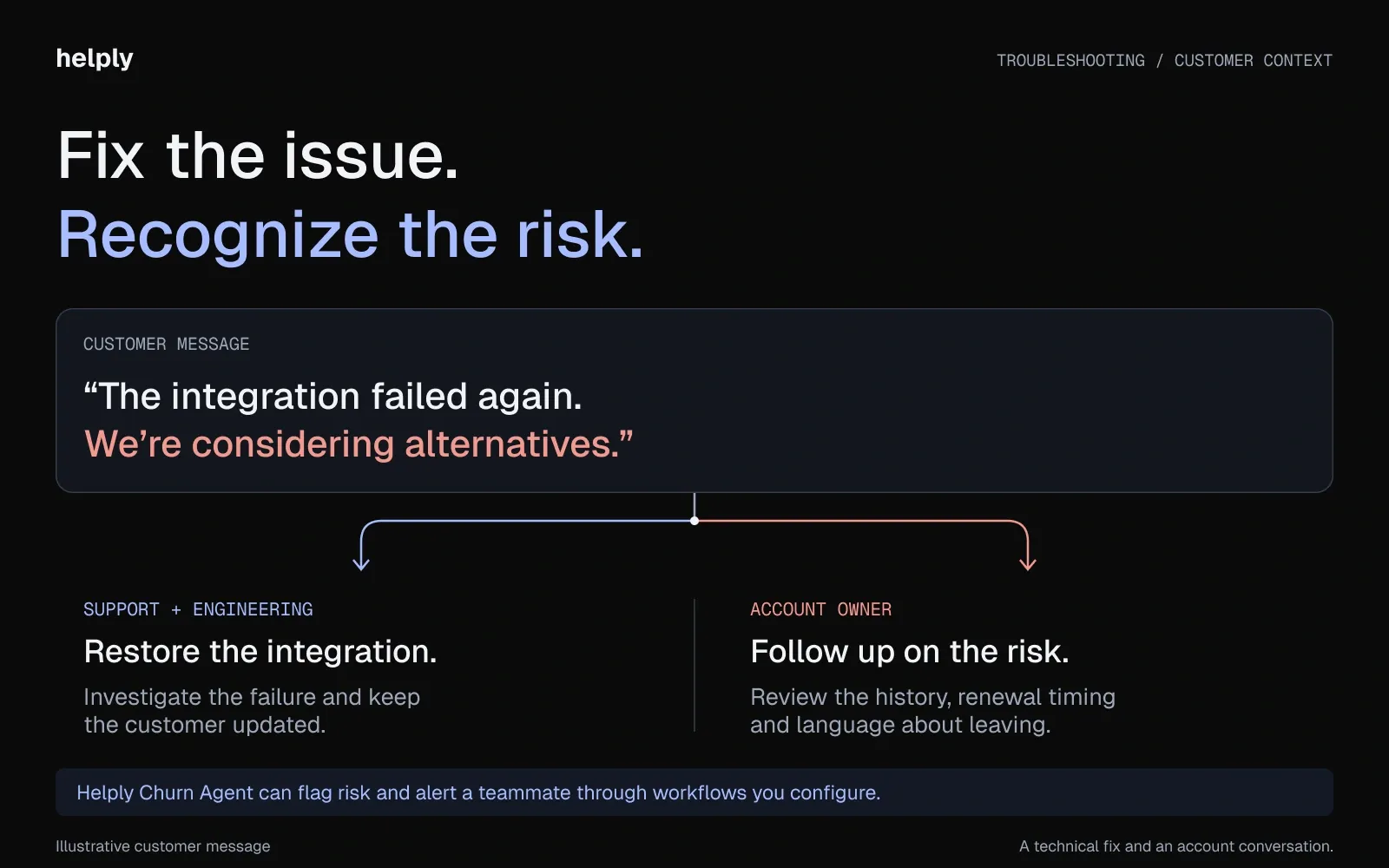
Your team fixes the issue, and the account owner can see the risk at the same time. If the customer is upset by then, use these steps for dealing with angry customers.
Support leaders making the case for tooling can point to this loop. Troubleshooting is both an operational task and an early-warning system. The account owner should hear the warning while there is still time to act.
How to Train Your Support Team in Troubleshooting
A repeatable process only works if the team knows how to follow it. Four steps get you there.
1. Develop the right attitudes
Anyone on the team can learn to troubleshoot, and your training should start by telling agents so.
Then teach patience: agents should read the whole ticket and the customer's history before sending the canned reply. That way, they won't ask for details the customer has sent.
2. Walk through real tickets together
Pull five recent tickets from the queue. Walk through each one using the 5-step process. Do not skip steps, even when the answer seems obvious.
The goal is a habit: the same five steps, in the same order, on every ticket. Run this session weekly for each new agent's first month.
3. Equip with the right resources
Every agent needs four things within reach: the canned reply template, the troubleshooting flowchart below, internal product documentation and a searchable knowledge base.
For newer agents, AI-drafted replies serve as a training tool. The agent reviews the draft, learns the pattern, and builds product knowledge faster.
4. Review and celebrate
Call it out each time an agent troubleshoots a hard issue well. Share the ticket with the team.
Identify what made it good:
Was the evidence gathering thorough? Did they isolate the variable correctly?
Was the bug ticket complete enough that engineering resolved it on the first attempt?
Troubleshooting Flowchart: A Visual Decision Tree
Use this flowchart as a desk reference or pin it in your team's Slack channel.
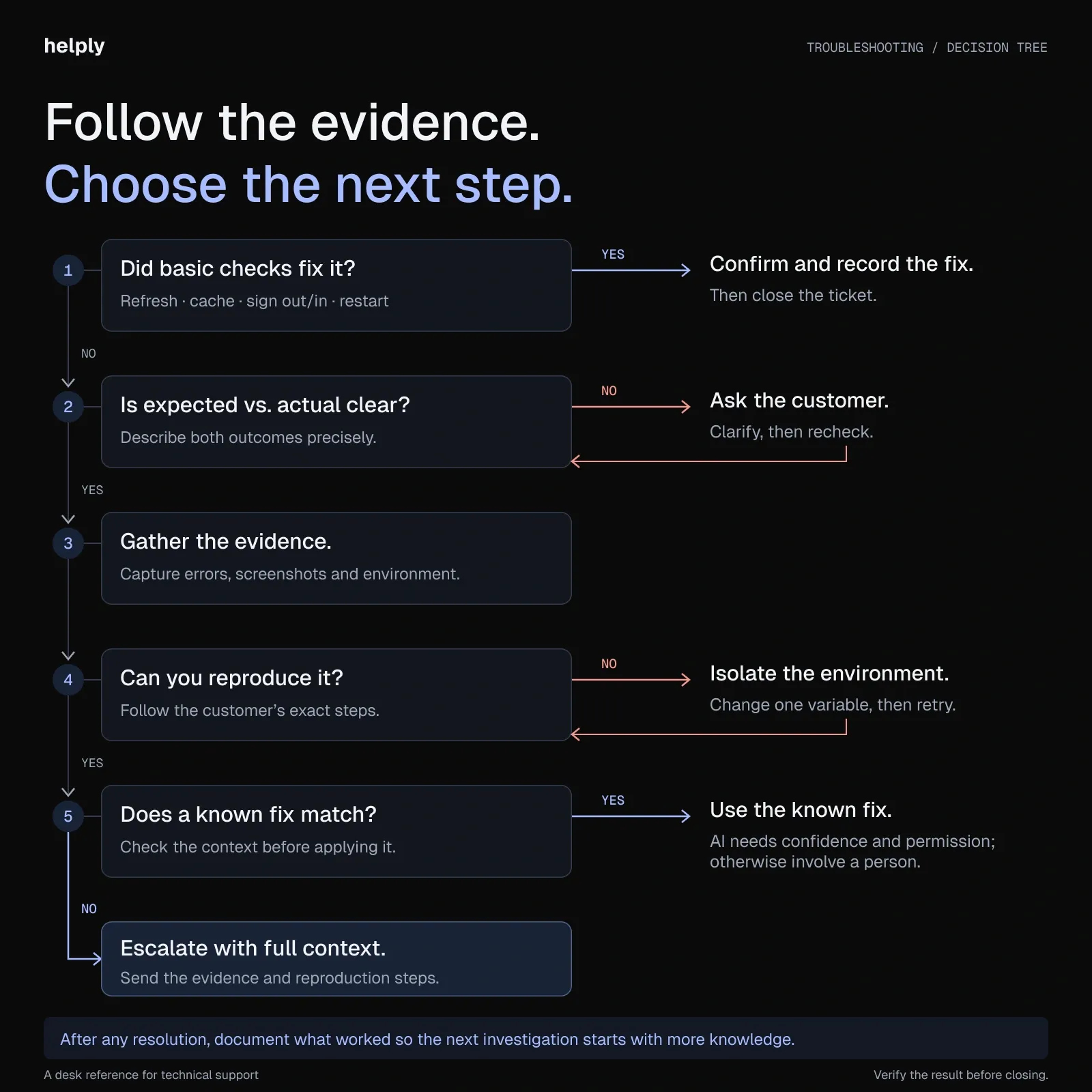
The best support teams treat every technical issue as both a problem to solve now and data to capture for the future.
What Should You Measure to Know Your Troubleshooting Is Improving?
Time-to-resolution measures speed, but you can't spot repeat issues from it. A team that closes tickets fast while old issues return each week isn't improving. Track these five metrics together.
| Metric | What It Measures | Target | Why It Matters |
|---|---|---|---|
| First-attempt fix rate | Issues resolved on first reply | Rising month over month | Reduces customer effort and eliminates back-and-forth |
| Issue recurrence rate | Same problem reappearing after resolution | Trending down monthly | Shows whether your fixes reach the root cause |
| Time-to-resolution | Duration from ticket open to close | Context-dependent | Speed metric; read it alongside recurrence rate |
| KB deflection rate | Tickets that self-service prevents | Rising month over month | The compounding economics metric |
| Knowledge utilization | How often agents consult the KB during troubleshooting | High and rising | Validates your documentation investment |
Track these monthly. If first-attempt fix rate is flat or falling, the team may need deeper product training or better diagnostic tools.
If KB deflection is low six months after launch, the articles don't use the words customers type into search. Pull the searches that end in a ticket, and write the articles in those words.
As your team adds articles, customers can solve more on their own.
Should You Run the Five Steps by Hand or in Helply?
A small team with a few technical tickets a week can run on these five steps, the canned reply and a shared doc. Helply makes sense once the same technical questions return every month, or once support starts pulling engineers off the roadmap.
Helply's Knowledge Agent can suggest articles from the fixes your team closes, so the next person can reuse them. If the Support Agent can't resolve a ticket with confidence, it passes the investigation and customer context to a person. That person can reply without asking the customer to repeat anything.
Your engineers can stay out of the inbox until someone escalates a confirmed bug. At Kameleo, the Support Agent filed clean engineering issues in Linear and alerted the right person when something needed a human.
Kameleo replaced its Zendesk and GitHub setup with Helply, and its managers have built 30+ plain-language Skills. Tamas Deak says: "We describe a workflow in plain English and it becomes a Skill."
Every plan includes unlimited users and the Assist, Support and Background agents, so adding engineers leaves the bill unchanged. The smallest credit block costs $49 a month and holds 500 credits. Answering "Is this our bug or their config?" uses 4 credits, and so does filing a Linear issue.
You may worry that AI will answer a technical ticket with confidence and get it wrong. Before replying, Helply's agents can check your docs, past resolutions and the customer's account through connected tools. With Helply's escalation rules, you decide where AI can proceed alone and where a case needs human judgment.
Connect your docs and one inbox, then set your escalation rules. Indexing your knowledge base, connecting tools and writing Skills cost no credits.
Frequently asked questions
A technical issue is any fault in software, hardware, a network or an account that keeps a product from doing its job. Common examples are error messages, failed logins, broken integrations, slow pages and buttons that do nothing.
Use five troubleshooting steps: basic checks, expected versus actual outcome, evidence, reproduction, then escalation or resolution. The basic checks are refresh, clear the cache, log out and back in, and restart. Escalate new bugs with full context, let AI resolve issues that match a known pattern, and confirm each fix with the customer.
In CompTIA's methodology, the first step is to identify the problem. For a customer-reported software issue, start with four quick checks: refresh, clear the cache, log out and back in, and restart. If the issue persists, ask what the customer expected and what happened instead.
CompTIA's Network+ exam objectives list seven steps. Steps one to three: identify the problem, establish a theory of probable cause and test that theory. Steps four to seven: plan the fix, implement it or escalate, verify the system works and document the findings.
CompTIA A+ uses a six-step version that merges planning and implementing.
Write a one-line summary, then the expected outcome, the actual outcome and the steps to reproduce it. Attach screenshots, console errors and device details, and state the scope and severity. A complete report saves the support or engineering team a round of questions.
List your most common ticket types and write the resolution path for each. Save a canned reply that asks for basic checks, such as a refresh and a cache clear, plus the evidence you need. Then turn every new fix into a knowledge base article so the guide grows with the product.
Troubleshooting finds why a product or system fails and restores it to working order. Debugging is narrower: ISO/IEC/IEEE 24765:2017 defines it as detecting, locating and correcting faults in a computer program. Support agents troubleshoot the customer's setup first and pass confirmed code defects to engineers to debug.
AI can categorize tickets, draft replies with the customer's context and resolve issues that match a known pattern. Helply, an AI-native customer support platform, adds agents that can check account data through connected tools and suggest help articles from closed tickets. If Helply's Support Agent isn't confident it can resolve a ticket, it passes the work to a person along with its findings.
No universal benchmark exists, so track your own rate monthly and expect it to rise as the knowledge base grows. For a related measure, Gartner reported in August 2024 that self-service fully resolved 14% of customer service issues. A flat rate six months in means the articles don't match what customers search for.
Escalate after the first four steps if the issue persists and matches no known pattern. Those steps are the basic checks, expected versus actual outcome, evidence and reproduction. Escalate sooner for data loss, security problems or an outage that affects many customers.
Practice the same five steps on real tickets until the order becomes habit. Review solved tickets with the team each week and ask which piece of evidence pointed to the cause. Read how engineering resolved your past escalations to learn what evidence they needed.
About the author

Bildad Oyugi
Head of Content
Bildad is a digital marketing expert with over 5 years of experience in copywriting, content marketing, and editing. Outside of work, he enjoys videography and spending time with his family.
Keep reading

Customer Support
Crisp Pricing in 2026: Plans, Seat Limits, Hugo AI Credits and Monthly Bills
Bildad Oyugi · 14 min read

Customer Support
eesel AI Pricing 2026: Plans, Credits and Real Cost
Bildad Oyugi · 12 min read

Customer Support
8 eesel AI Alternatives for Customer Support in 2026
Bildad Oyugi · 21 min read