
 Bildad Oyugi ··12 min read

The Four-Message Sequence for Closing a Ticket Due to No Response
Send the four messages on fixed days, and every agent can close a ticket due to no response on the same schedule.
Your waiting view has 40 tickets in it, and some are three weeks old. You don't want to close one and get an angry reply the next morning, so they sit. The queue looks worse than it is, and resolution time drifts up every week.
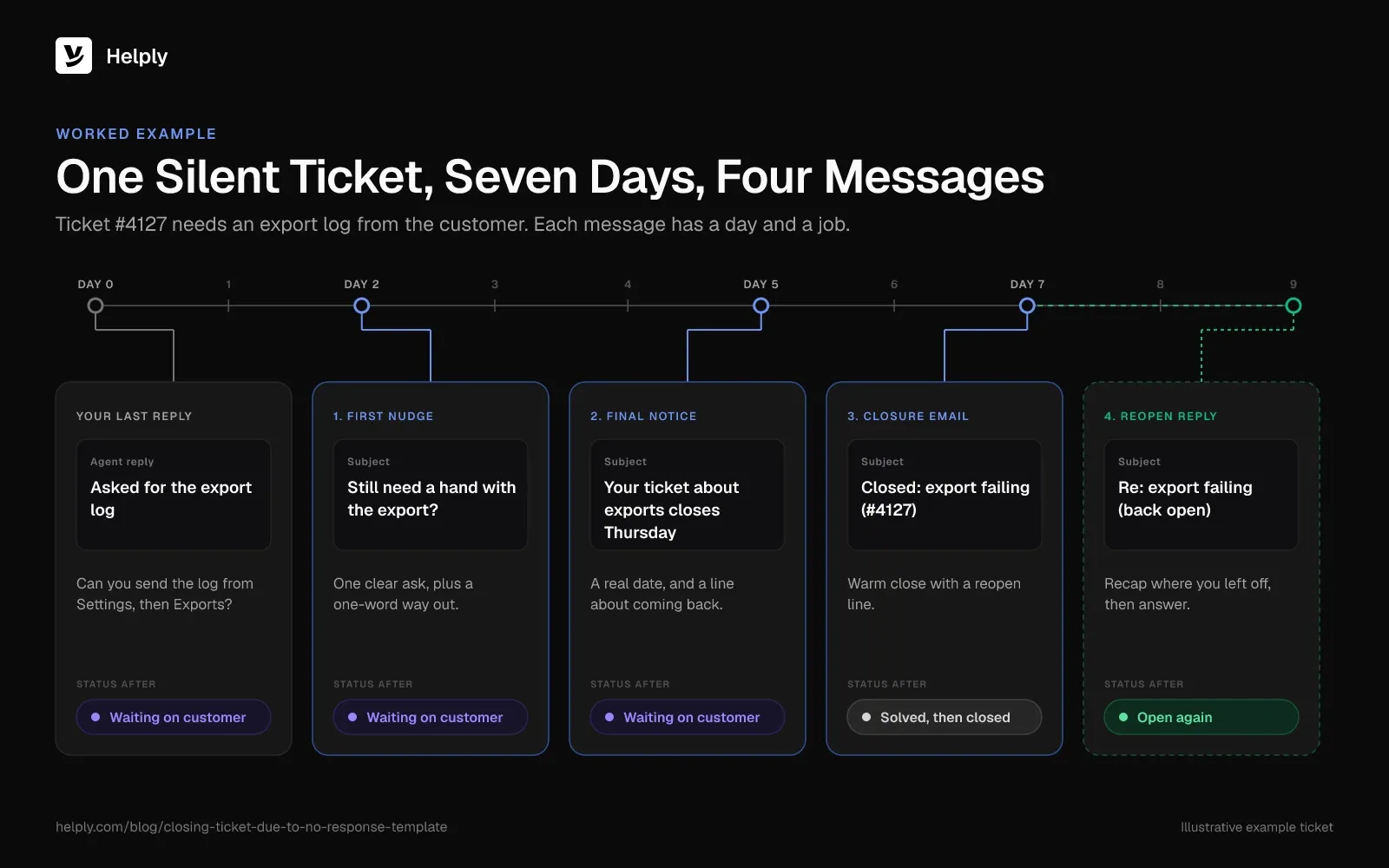
With a fixed sequence, every agent sends the same four messages on the same days. Each customer sees the closing date before it arrives, so you close without dreading the reply. The templates below follow that order.
No-Response Sequence Compared: Send Day, Status, Goal and Template
| Message | When to send it | Ticket status after | Goal | Templates |
|---|---|---|---|---|
| First nudge | Day 2 after your last reply | Waiting on customer | Get the missing detail or a "fixed" | 1, 2, 3 |
| Final notice | Day 5 | Waiting on customer | Name the closing date | 4 |
| Closure email | Day 7, the date you named | Solved, then closed | End the thread and explain how to reopen | 5, 6 |
| Reopen reply | Whenever the customer writes back | Open | Pick up with full context | 7, 8 |
First Nudge Templates
The first nudge is a friendly check-in. Restate the one thing you need, and give the customer an easy way out if the problem went away. The same habits help when you respond to a customer inquiry the first time.
1. First Nudge After No Reply
Subject: Still need a hand with [issue]?
Hi [first name],
My last note on [issue] went out on [date], and I want to make sure it reached you. Is this still a problem on your end?
If it's fixed, a one-word "fixed" is plenty and I'll mark the ticket done. If it isn't, send over [the detail you need] and I'll carry on.
[Your name]
Use it when: you asked a question or sent an answer and heard nothing for two days.
It works because one clear ask and a one-word exit make replying take seconds.
2. Nudge When You're Waiting on Details
Subject: Ready to continue on [issue] once I have [detail]
Hi [first name],
I've paused your ticket about [issue] until I have [screenshot / order number / error message / account email].
With that in hand, I can [next step, e.g. trace the failed payment]. Found a workaround already? Tell me and I'll wrap things up.
[Your name]
Use it when: the ticket can't move until the customer sends something specific.
It works because naming the item and the next step shows the customer what their reply lets you do.
3. Nudge After You Sent a Fix
Subject: Quick check: is [issue] fixed for you?
Hi [first name],
On [date] we [one-line summary of the fix], and that should sort it.
If it did, you don't need to reply. I'll close the ticket on [date] unless you tell me otherwise.
[Your name]
Use it when: you delivered a solution and the customer went quiet. On this path, the nudge doubles as the final notice.
It works because it makes "no reply" a safe answer, and you name the day you'll close.
Final Notice Template
Put the exact closing date in the final notice. A vague "we'll close this soon" can sound like a threat, and a date gives the customer a deadline to plan around.
4. Final Notice Before Closing
Subject: Your ticket about [issue] closes on [date]
Hi [first name],
To finish [issue], I still need [the detail you need]. My last note went out on [date].
I'll close the ticket on [date]. Send [detail] before then and I'll carry on. Write back after that, and I'll pick it up with our whole conversation attached.
[Your name]
Use it when: three days have passed since the first nudge.
It works because the customer knows the exact day, and the last line tells them they won't start over.
Ticket Closure Email Templates
Use these email templates when closing a ticket due to no response. The closure email may be the last thing the customer reads from your team, so keep it warm. Teams that call tickets "cases" can use the same text as a closing case email template.
5. Closing a Ticket Due to No Response
Subject: Ticket #[number] closed: reply any time to reopen
Hi [first name],
You haven't replied about [issue] since [date], so I've closed the ticket today. I hope that means the problem has cleared up.
Should the problem return, answer this email and I'll pick it up with every earlier message in front of me. Our [help center or chat link] is open too.
[Your name]
Use it when: the date in your final notice arrives with no reply.
It works because the hopeful guess sounds kind, and the reopen line gives the customer a clear route back.
6. Closing After a Fix the Customer Never Confirmed
Subject: Wrapping up ticket #[number]: [issue]
Hi [first name],
You haven't mentioned [issue] since the fix on [date], so I'm closing this ticket.
Spot anything odd later? Reply with what you're seeing, and we'll pick it up from here.
[Your name]
Use it when: you sent template 3, the date in it passed, and the customer stayed quiet.
It works because it names the fix and its date, so the customer knows what to test if the problem returns.
Reopened Ticket Templates
A late reply means the customer used the way back you offered in your closure note. Show them in your first answer that you have the full history.
Help desks treat that late reply in different ways. Freshdesk reopens a Resolved or Closed ticket by default, and Help Scout sets a closed conversation back to Active unless Conversation Lock applies. Zendesk keeps a closed ticket closed and creates a follow-up ticket instead.
7. Reopening a Closed Ticket
Subject: Re: [issue] (back open)
Hi [first name],
Good to hear from you again. The ticket is open, and our earlier messages are right here, so you won't have to explain it twice.
Where we left off: [summary]. [Answer or next question.]
[Your name]
Use it when: your help desk reopens the original ticket.
It works because a one-line recap shows the customer you read the history before replying.
8. Replying on a Follow-Up Ticket
Subject: Re: [issue] (follow-up to ticket #[old number])
Hi [first name],
Your reply came in as a new ticket, #[new number], and I've linked it to our earlier conversation about [issue].
Picking up from there: [answer or next question].
[Your name]
Use it when: your help desk opens a new ticket for a reply to a closed one.
It works because naming both numbers stops the customer from thinking their history disappeared.
Short Versions for Live Chat, WhatsApp and Slack
Email-length nudges feel heavy in a chat window. Cut each message to one or two lines and keep the date.
9. Chat and Messaging Short Set
Nudge: Hi [first name], still stuck on [issue]? Send me [detail] and I'll keep going.
Final notice: No word yet, so I'll close this chat on [date]. Send [detail] before then and I'll pick it back up.
Closed: Closing this one for now. Message us here whenever you like, and we'll pick it up from where we left off.
Use it when: the conversation started in live chat, WhatsApp, Slack or another messaging channel.
It works because short lines fit a chat window, and the customer still sees the closing date.
How Long Should You Wait Before Closing a Ticket?
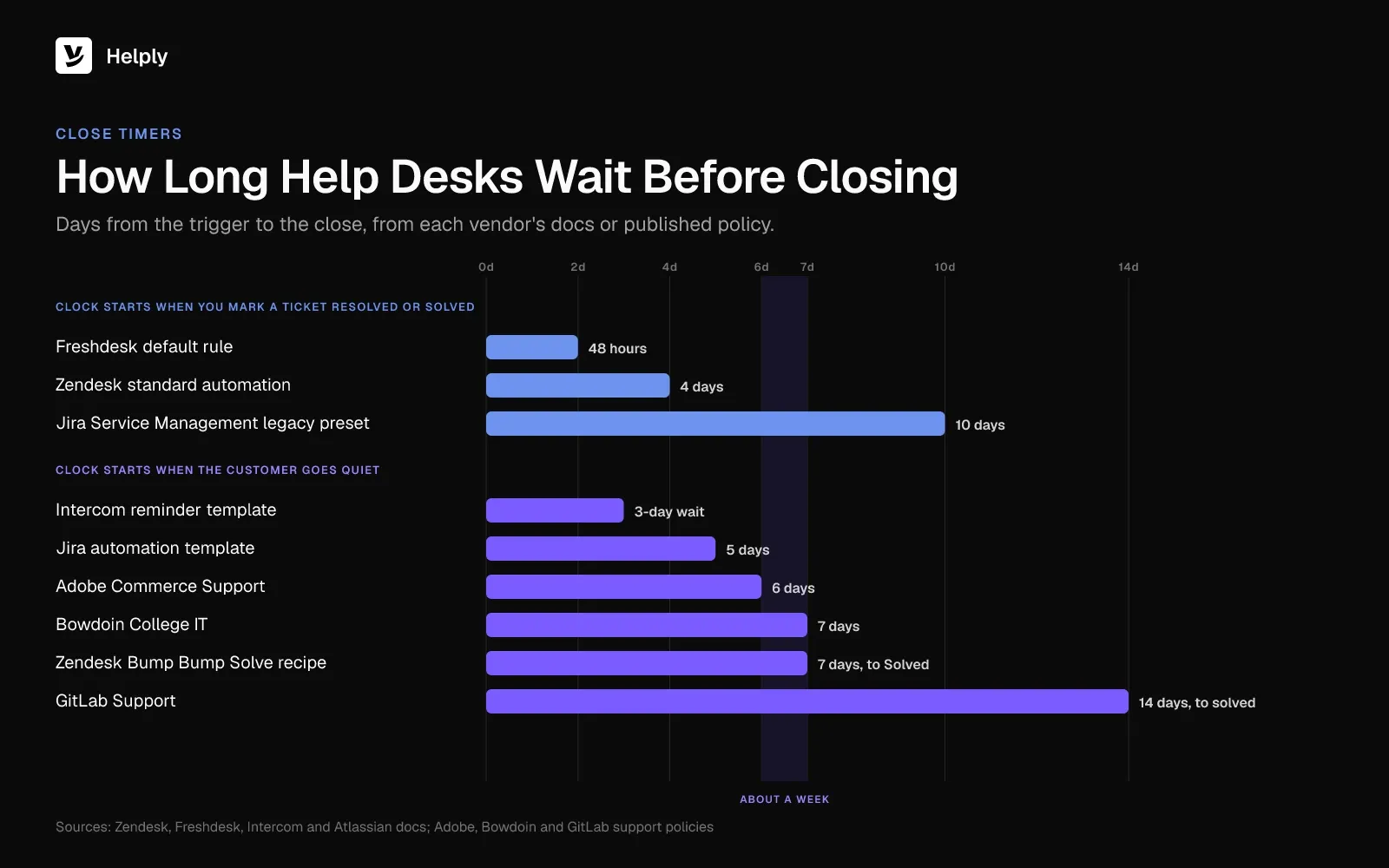
About a week of silence after your last reply suits most customer-facing teams, with two reminders inside that week. Adobe Commerce Support closes on day 6, Bowdoin College IT on day 7, and GitLab Support solves on day 14.
Four timing rules keep the schedule fair:
- Skip weekends. If a send day lands on a weekend, move it to Monday so the customer keeps the full window.
- Start the clock at your last reply. Silence before your reply doesn't count against the customer.
- Reset on any reply. If the customer sends even a "still checking" message, restart the sequence from the first nudge.
- Pause for named absences. If an auto-reply says the customer is away until a date, move your closing date past it.
No-Response Schedules Compared: Reminders, Close Day and Reopen Rule
| Team | Reminders | Closes after | Reopen rule |
|---|---|---|---|
| Adobe Commerce Support | Days 1, 3 and 5 after Pending Response | Day 6 | Customers reopen within 14 days on Experience League |
| Bowdoin College IT | Request day 1, reminders days 3 and 5 | Day 7 | Submit a new request after closure; reply before day 7 to ask for more time |
| Zendesk "Bump Bump Solve" recipe | Calendar days 4 and 6 | Day 7 (set to Solved) | Solved closes 4 days later by default; a later reply creates a follow-up ticket |
| GitLab Support | Day 7 in pending | Day 14 (solved) | Customers can reopen for 7 days |
Sources: Adobe Commerce Support ticket lifecycle, Bowdoin College IT response guidelines, Zendesk reminder recipe and GitLab Support general policies.
Shorter windows suit fast, transactional questions like order status. Longer windows suit technical tickets, where the customer may need days to test a fix on their side.
Help Desk Defaults Compared: Waiting Status, Auto-Close and Reopen
Check your help desk's own timers before you write a rule. Some already close tickets on a schedule, and if two rules fire on one ticket, the customer gets two different closing dates.
| Help desk | Waiting status | Built-in close | When the customer replies after closing |
|---|---|---|---|
| Zendesk | Pending | Closes Solved tickets after 4 days by default (editable up to 28) | Creates a follow-up ticket |
| Freshdesk | Pending or Waiting on Customer | Default rule closes Resolved tickets after 48 hours (you can turn it off) | Reopens the ticket by default |
| Help Scout | Pending | None; build a workflow on Standard and up | Sets it back to Active, unless Conversation Lock applies |
| Intercom | Snoozed for one day after the nudge | Opt-in template waits 3 days, nudges, snoozes a day, then closes | Not stated in the auto-close template |
| Jira Service Management | Waiting for customer | Legacy presets can remind after 5 days in Waiting for customer and close requests resolved for 10 days | A comment reopens a resolved request |
| HubSpot | Waiting on contact | No built-in setting in its pipeline docs | Moves it to the first open status |
Zendesk's standard automation closes a ticket four days after your agent sets it to Solved, a window you can stretch to 28 days. To remind a customer on a quiet Pending ticket, you switch on or build an automation, such as the Bump Bump Solve recipe. That recipe ends in Solved, so the four-day close still runs after it.
Freshdesk closes resolved tickets by default. Jira Service Management's legacy presets can do the same once you set them up. Help Scout needs a workflow you build, and HubSpot's pipeline docs list no built-in close.
Tickets That Should Never Close for No Response
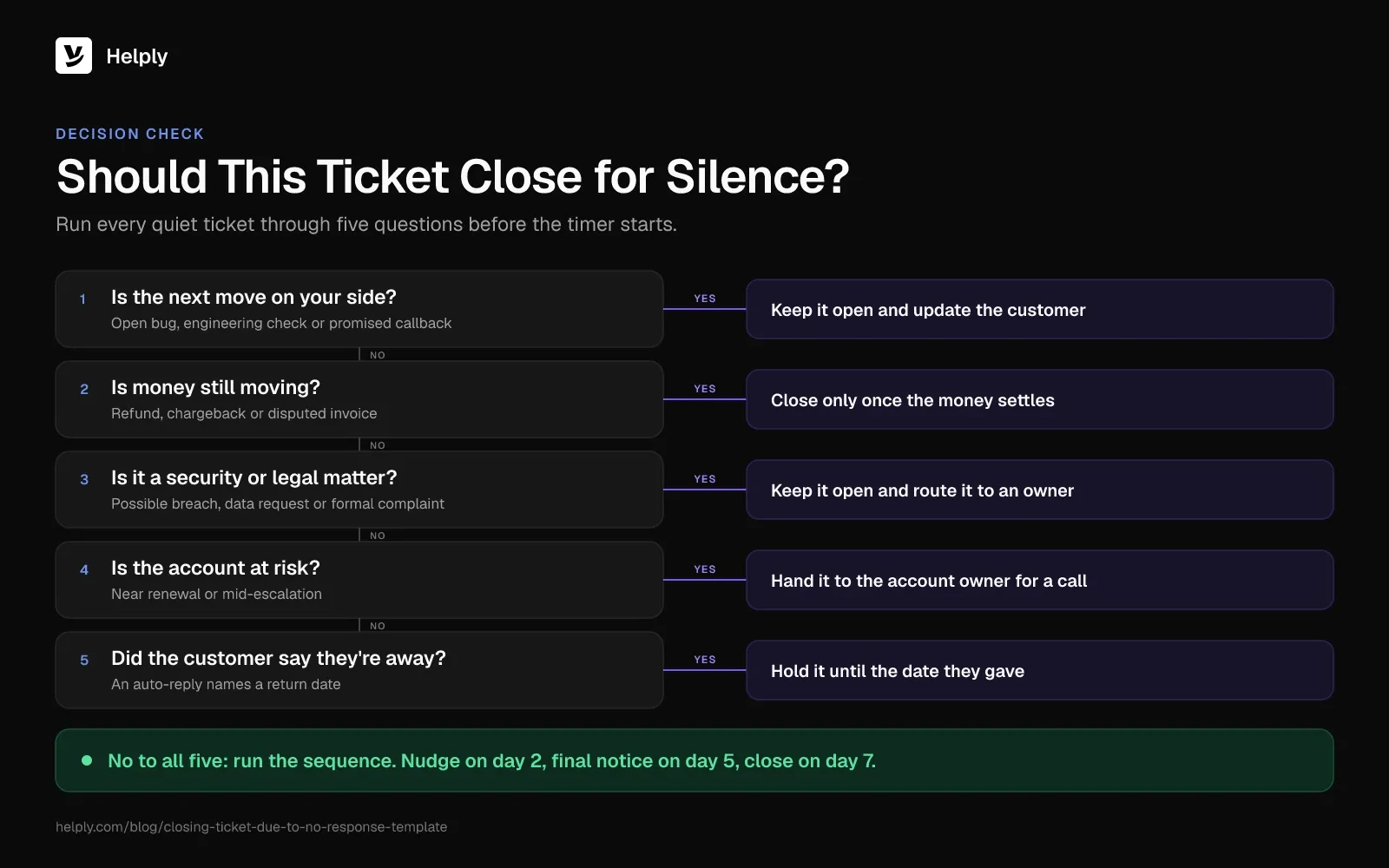
Silence only means "done" when the next move belongs to the customer. Keep these tickets out of the automatic sequence:
- Waiting on your team. An open bug, an engineering investigation or a promised callback puts the next move on your side.
- Money in motion. A refund, a chargeback or a disputed invoice should close only once the money settles.
- Security reports. A possible breach or account takeover needs an answer from you, whatever the reporter does next.
- Complaints with legal or regulatory weight. Data requests and formal complaints follow their own deadlines.
- Accounts at risk. A customer near renewal or mid-escalation deserves a call from their account owner instead of a timer.
- Named absences. Hold the ticket until the customer is back, as in the timing rules.
Tag these tickets so your rule skips them. Zendesk's recipe uses a dont_bump tag for the same job. Memorial University's IT office keeps security issues out of its no-response closures.
How to Automate the No-Response Sequence
Sending the four messages by hand works for a handful of tickets. Past that, agents forget the dates, and the sequence breaks on the busiest weeks.
Set it up once in your help desk:
- Use a waiting status. Park every ticket that waits on the customer in a status like Pending (in Zendesk, a reply moves it back to Open).
- Save each template as a macro. Agents then send the same wording every time, with placeholders for the details.
- Build one rule per step. Rule one sends the nudge on day 2, rule two the final notice on day 5, and rule three closes on day 7.
- Skip exceptions by tag. Every rule checks for your exception tag before it fires.
- Tag the close reason. Mark tickets closed for silence, so your reports separate them from tickets you solved.
- Watch the reopen rate. If many closed-for-silence tickets reopen, your window is too short or your nudges ask for too much.
10. Internal Note When You Close for No Response
Internal note: Closed for no response.
Last agent reply: [date]. Nudge: [date]. Final notice: [date].
Still needed from the customer: [detail]. Reopen with this context if they write back.
Use it when: a ticket closes for silence, by hand or by rule.
It works because the next agent sees what was missing without reading the whole thread.
Run the Sequence in Helply
Helply's help desk comes with AI agents built in. The Support Agent can nudge a quiet customer after a wait you set, on any channel it answers. If the customer stays quiet, it can then close the conversation.
Rules tag and assign waiting tickets, macros hold the templates your team sends by hand, and views keep the pile on one screen.
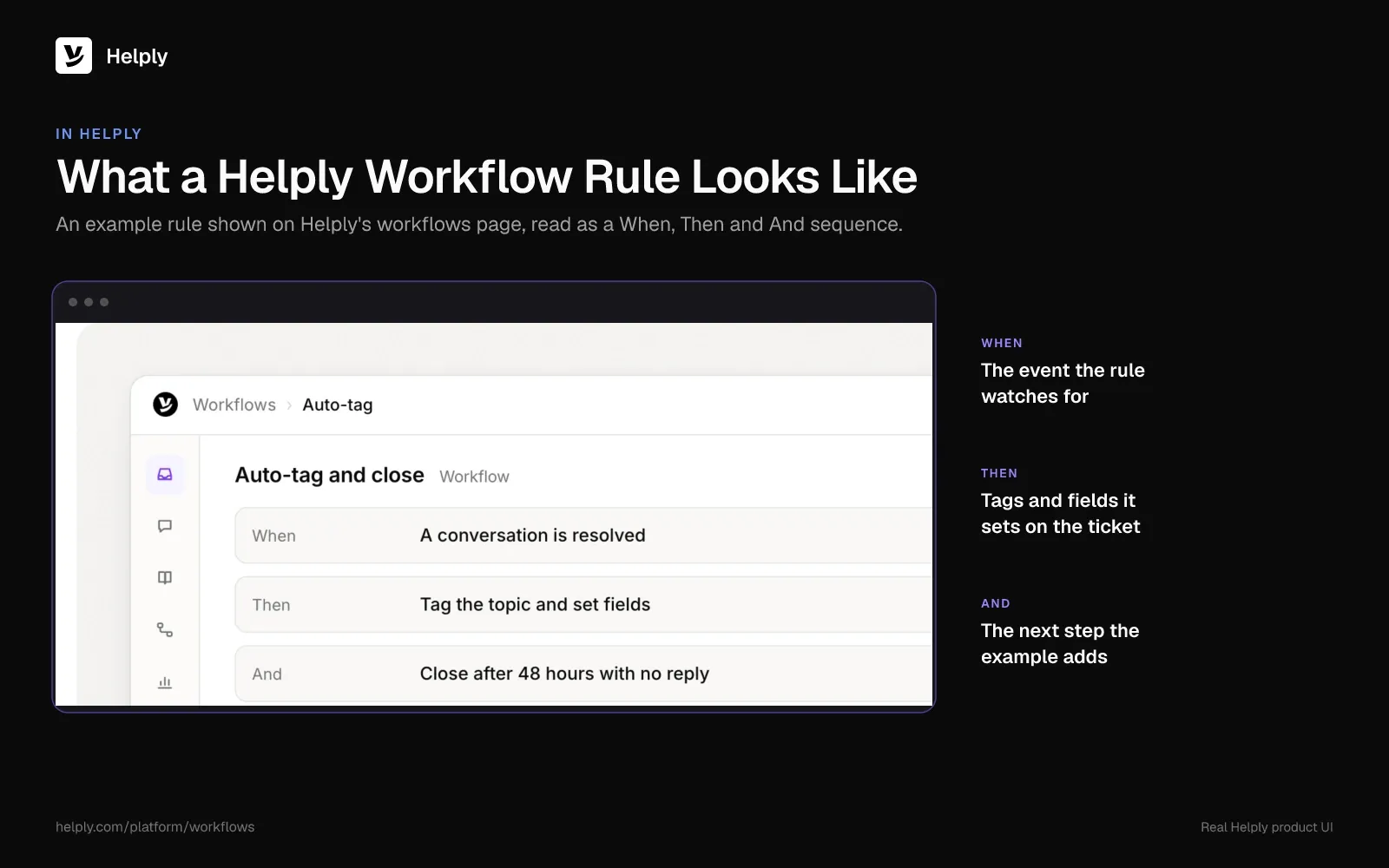
Helply workflows assign conversations, update fields, add tags and handle routine support work from rules your team sets. A rule can tag each waiting ticket, so exceptions and closed-for-silence tickets stay easy to find. Agent workflows can turn escalation, follow-up and other processes into repeatable steps.
The shared inbox comes with views, tags, macros, notes, snooze and custom statuses. Set up a status for tickets waiting on the customer, and a view filtered by it lists every ticket in that status. You can also set SLA response and resolution targets and see which conversations need attention before you miss a target.
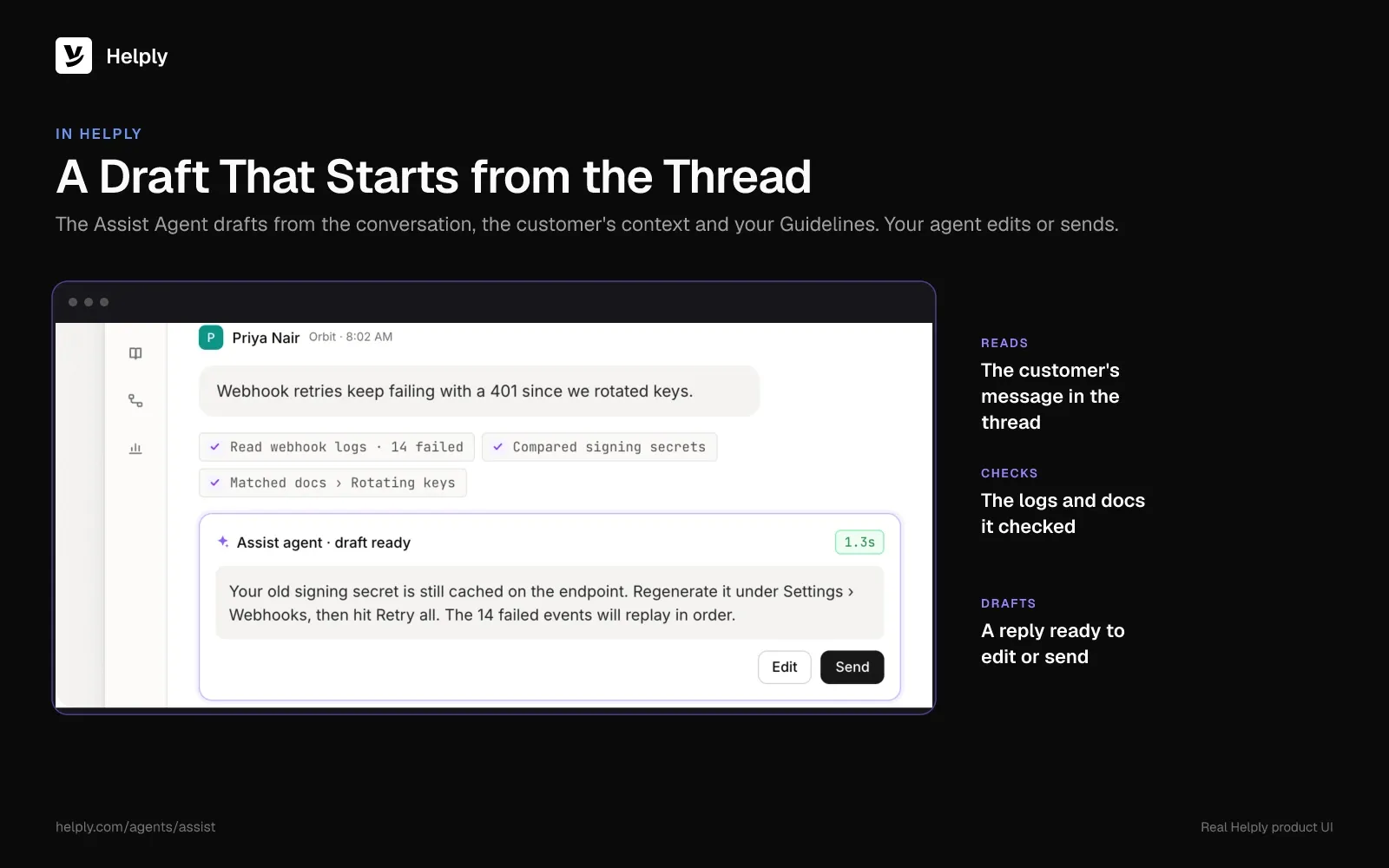
The Assist Agent drafts from the ticket thread, the customer's context and your Guidelines. A nudge drafted that way can name the exact log or order number you need, instead of a generic "checking in."
The Support Agent can resolve customer issues end to end. If it's unsure, it passes the ticket to a teammate with what it already checked. You end up with fewer tickets waiting on a back-and-forth.
Close Silent Tickets by Hand or Let the Support Agent Do It?
If only a few tickets go quiet each week, save the ten templates as macros and send them by hand. Past that, Helply's Support Agent can nudge and close quiet conversations on your schedule. The Assist Agent can draft any message that still needs a person.
Once every agent follows the dates, three-week-old tickets close on schedule. Each customer gets a named date and a way back in, so you can close a quiet ticket without second-guessing it. A close-reason tag also lets your reports split closed-for-silence tickets from solved ones.
Some quiet tickets start as repeat questions. The Support Agent can resolve a share of those end to end, before a ticket starts waiting. Helply imported MixWave's past tickets and knowledge base, so the team had no migration work to do.
Start with one inbox and the four core templates. Once the reopen rate looks right, hand the quiet tickets to the Support Agent. SLA targets start on the Team plan, and pricing shows how many rules each plan includes.
Frequently asked questions
Send a first nudge on day 2 after your last reply and a final notice with the closing date on day 5. Close on day 7 with a note on how to reopen, and tag the ticket as closed for no response.
About a week after your last reply, with two reminders inside it. Adobe Commerce Support closes on day 6, and GitLab Support solves on day 14.
Two: a first nudge and a final notice that names the closing date. Bowdoin College IT sends two reminders before it closes on day 7.
Say you haven't heard back, assume the best, and name the next step. A line like "No reply yet on [issue], so I'll close this ticket on [date]" stays polite and clear.
A ticket closure email names the issue, says you're closing the ticket after no reply, and explains how to reopen it. Keep it short and warm, with no blame for the silence.
Ask for a one-word reply, like "fixed," once the problem is gone. Add that you'll close it on a named date if you don't hear back, so silence also counts as an answer.
Freshdesk reopens the ticket by default, and Help Scout sets it back to Active unless Conversation Lock applies. Zendesk creates a follow-up ticket, and HubSpot moves the ticket to the first open status.
In Zendesk, a Solved ticket closes four days later by default, and you can set that window anywhere up to 28 days. A closed ticket stays closed, so a customer reply creates a follow-up ticket in its place.
You can, but a final notice with a date costs one email and gives the customer a fair last chance. A surprise close can leave the customer feeling your team gave up.
About the author

Bildad Oyugi
Head of Content
Bildad is a digital marketing expert with over 5 years of experience in copywriting, content marketing, and editing. Outside of work, he enjoys videography and spending time with his family.
Keep reading

What Is a Support Ticket? Fields, Statuses, Types and Examples
Konrad Janczyk · 15 min read
Slack Customer Support: How to Run Support in Slack
Alex Turnbull · 14 min read