
 Konrad Janczyk ··16 min read

Key Takeaways
- A ticket acknowledgement email confirms receipt, gives the ticket number and sets a reply window your team can keep.
- Send one acknowledgement per new ticket and none for follow-up replies.
- Zendesk, Freshdesk, Help Scout, Zoho Desk and Jira Service Management each have a built-in acknowledgement. Confirm it's on, and rewrite its wording where your plan allows.
- Keep separate ticket acknowledgement email templates for after-hours, urgent, outage, bug, billing and complaint tickets.
- Helply's Support Agent can answer tickets when it has enough knowledge, context and confidence, and hand the rest to your team.
What Is a Ticket Acknowledgement Email?
A ticket acknowledgement email is the receipt your help desk can send the moment a new support ticket exists. The email tells the customer the request arrived, gives the ticket number and names the time a person will reply.
A customer emails your team at 6 p.m. because a payment failed. Nothing comes back. By 9 a.m. the queue holds three more emails from the same person, and the last one asks whether anyone reads this inbox.
One acknowledgement that evening could have answered the question behind those follow-ups. The payment would still need fixing, but the customer would know when to expect a person.
Two other emails look like a ticket acknowledgement. An auto-reply is any automatic message, such as an out-of-office note, and a first response is a person's answer. The acknowledgement is automatic too, but it belongs to one ticket and carries that ticket's number.
In SuperOffice's Customer Service Benchmark, published in February 2018, 90% of the 1,000 companies it emailed didn't acknowledge that the email had arrived. In that study, a plain receipt was enough to stand out.
Most customers expect a reply within hours. Shep Hyken surveyed 2,226 US adults in January 2026. Of those, 57% expected an email reply within two hours, and 86% called 24 hours the absolute limit.
What Should a Ticket Acknowledgement Email Include?
A complete acknowledgement has six parts: subject line, confirmation, reply window, next step, self-serve link and urgent route. The 12 templates use only the parts each situation needs. Leave a needed one out, and the customer may write back to ask for it.
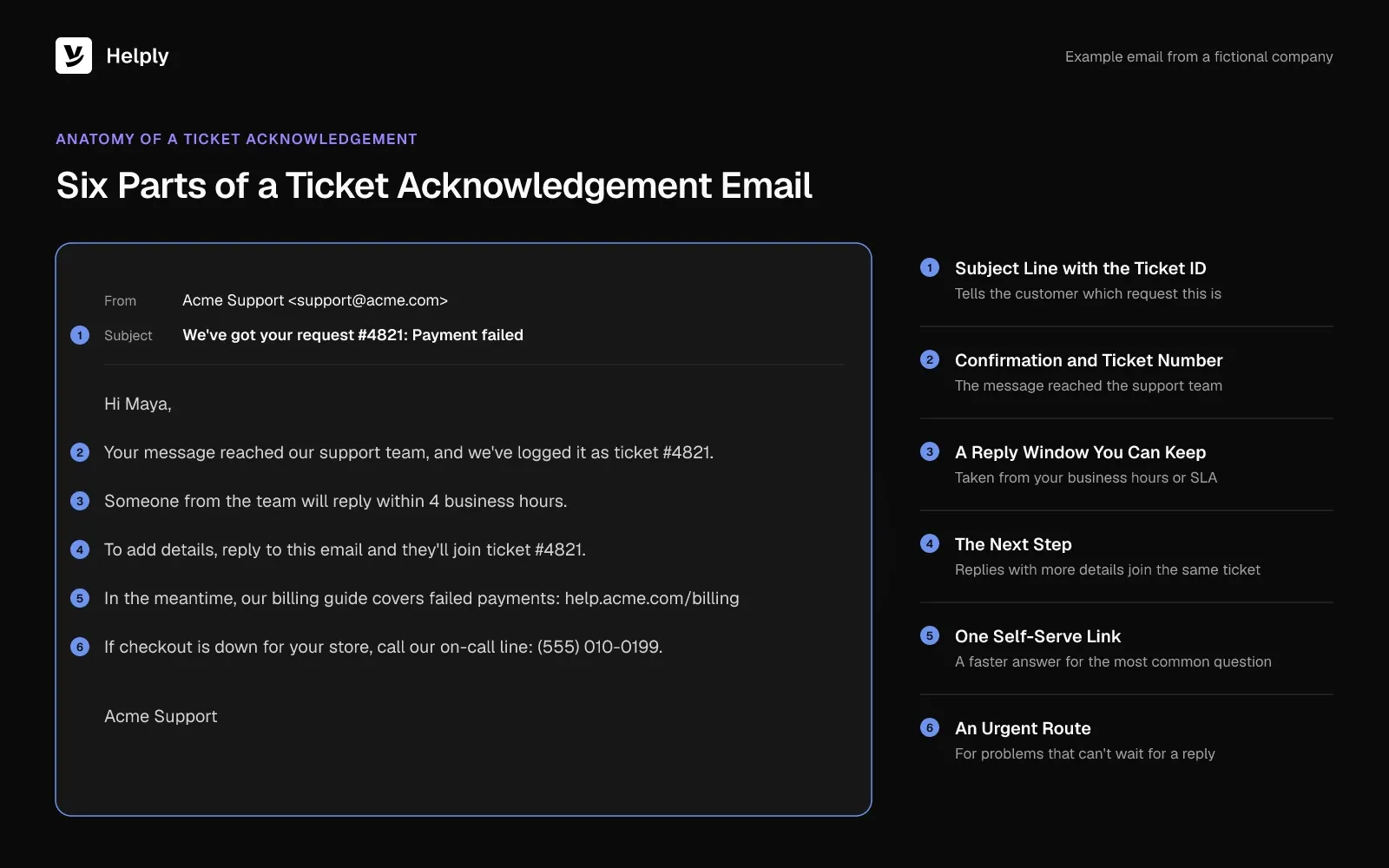
Ticket Acknowledgement Email Parts: What Each One Tells the Customer
| Part | What it tells the customer | Example wording |
|---|---|---|
| Subject line with the ticket ID | Which request this is | We've got your request #4821: Payment failed |
| Confirmation and ticket reference | The message reached the support team, and the number to quote later | Your message reached our support team. We've logged it as ticket #4821. |
| Reply window | When a person will answer | Someone from the team will reply within 4 business hours. |
| Next step | What to do now, if anything | Reply to this email to add screenshots or details. |
| Self-serve link | A faster route for common questions | Our billing guide covers failed payments: [link] |
| Urgent route | What to do if it can't wait | If checkout is down for your store, call [number]. |
If your SLA promises a first reply within 4 business hours, write 4 business hours. Miss that window, and expect a second email asking where the reply is.
Keep the whole email to one phone screen. The customer should see the ticket number and reply time without scrolling.
12 Ticket Acknowledgement Email Templates
Each customer service acknowledgement email below uses square-bracket placeholders. Swap ticket fields for your help desk's variables, such as {{ticket.id}} in Zendesk, and write the rest in your own words.
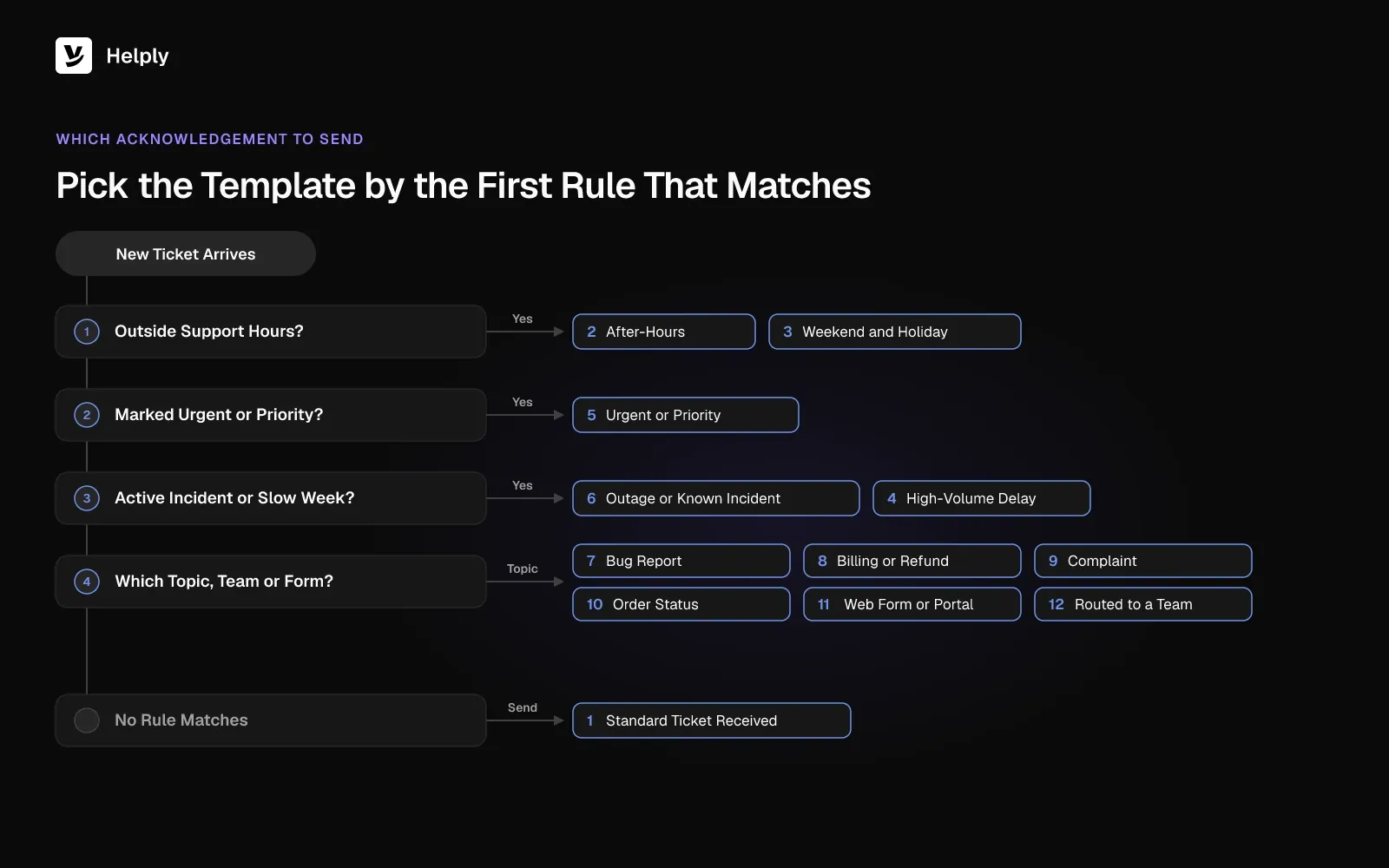
Pick the template by the first condition that matches. Check closed hours first, then priority, then an active incident or slow week, then the ticket's topic, team or form.
1. Standard Ticket Received Email
Send it when a new request arrives during working hours and no other template matches.
Subject: We've got your request [#ticket ID]: [ticket subject]
Hi [first name],
Your message reached our support team, and we've logged it as ticket [#ticket ID].
Someone from the team will reply [response window from your SLA, such as within 4 business hours]. You don't need to send anything else. If you think of more details, reply to this email and they'll join the same ticket.
In the meantime, [help center link] answers the questions we see most about [topic].
[Team name] Support
The payoff: The customer learns the request arrived, when a person will reply and how to add details.
2. After-Hours Acknowledgement
Send it when a request arrives outside your support hours.
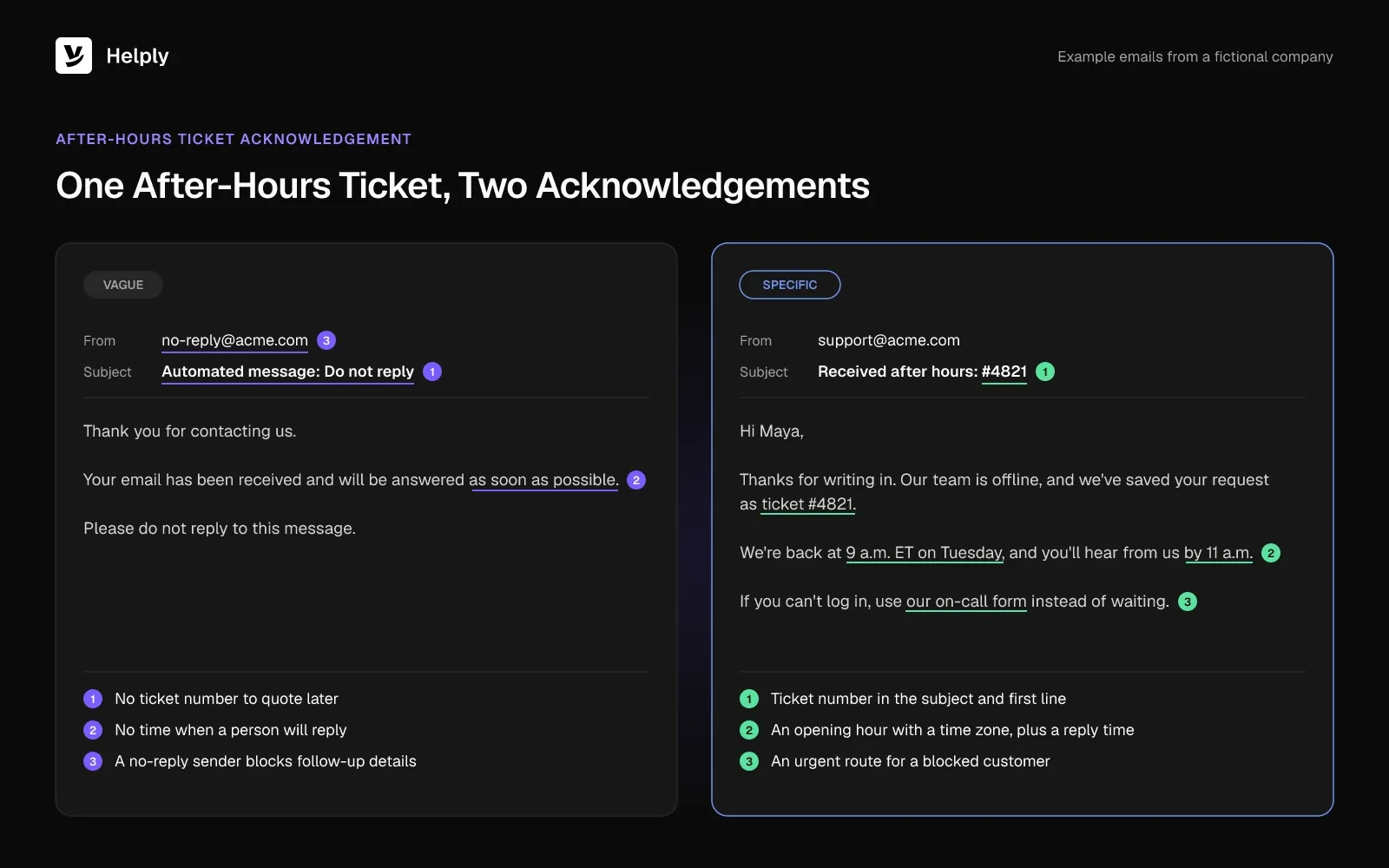
Subject: Received after hours: [#ticket ID]
Hi [first name],
Thanks for writing in. Our team is offline, and we've saved your request as ticket [#ticket ID].
We're back at [opening time, with time zone] on [day], and you'll hear from us by [reply time].
If [urgent condition, such as you can't log in], use [urgent route, such as our on-call form or phone number] instead of waiting.
[Team name] Support
The payoff: A customer can plan around a named opening hour. If they're blocked, they know where to go tonight.
3. Weekend and Holiday Acknowledgement
Send it from a scheduled rule for weekends, public holidays and company closures.
Subject: Your request [#ticket ID] is in. We're back on [date]
Hi [first name],
Our team is away for [the weekend or holiday name] until [date and time, with time zone]. Your ticket [#ticket ID] is in the queue, so there's no need to send it again.
Expect a reply by [date]. For [common topics, such as order tracking or password resets], [self-serve link] works around the clock.
If [urgent condition], use [urgent route] instead of waiting until [date].
[Team name] Support
The payoff: The customer gets a return date to plan around and learns that a second email won't move them up the queue.
4. High-Volume Delay Acknowledgement
Turn it on during a launch, a sale or any week when the queue runs past your normal reply time.
Subject: Replies are slower this week: [#ticket ID]
Hi [first name],
Sorry for the longer wait this week. We're getting more requests than usual because of [reason, such as our spring sale]. Your ticket [#ticket ID] is in the queue, and replies are taking about [current wait].
To add details, reply to this email so everything stays on one ticket.
If your question is about [the topic behind the spike], [status page or FAQ link] has the latest answers.
[Team name] Support
The payoff: You quote the current wait, so your promise matches the queue. Customers asking about the spike can find the answer in the link before anyone replies.
5. Urgent or Priority Ticket Acknowledgement
Send it when a rule marks a ticket urgent, or when the customer's plan or contract carries a faster response target.
Subject: Priority request received: [#ticket ID]
Hi [first name],
We've marked ticket [#ticket ID] as [priority level] because [reason, such as checkout is failing for your store].
Under your [plan or support agreement], you'll hear from us within [time]. [Assignee or team name] owns this ticket.
If the problem spreads or changes before we reply, answer this email and it joins the same ticket.
[Team name] Support
The payoff: With a priority and a reply time in the email, the customer can see you treated the ticket as urgent. Naming the owner answers "is anyone on this?" before they ask.
6. Outage or Known Incident Acknowledgement
Turn it on during an incident for tickets that match the affected service, then switch it off when the fix ships.
Subject: [#ticket ID]: We know about the [service] issue
Hi [first name],
Thanks for reporting this, and sorry for the disruption. We know [description of the problem, such as some invoices won't load], and our engineers are working on a fix.
Follow updates at [status page link]. Our next update goes out by [time], and we'll reply to this ticket when the fix is live.
You don't need to send more details unless [condition, such as you see a different error].
[Team name] Support
The payoff: With one status link and a promised reply after the fix, reporters have less reason to write again.
7. Bug Report or Technical Issue Acknowledgement
Send it when a ticket arrives through a bug form or carries a bug tag.
Subject: Bug report received: [#ticket ID]
Hi [first name],
Thanks for flagging "[ticket subject]." We've logged it as ticket [#ticket ID].
To help us reproduce it, reply with anything you haven't sent yet:
- The steps you took before it happened
- Your [browser, app version or device]
- A screenshot or the exact error message
We'll come back by [reply time] with what we find.
[Team name] Support
The payoff: Ask for steps, version and error in the first email, and you save a round trip later.
8. Billing or Refund Request Acknowledgement
Send it when a ticket arrives at a billing address or form, or carries a billing tag.
Subject: Your billing request [#ticket ID]
Hi [first name],
We've received your request about "[ticket subject]" and logged it as ticket [#ticket ID]. Our billing team handles these and replies within [reply window].
Please don't send full card numbers by email. If we need to find a payment, we'll ask for the last four digits or an invoice number.
If this is about a refund, [refund policy link] shows how long refunds take to reach your account.
Your past invoices are in [billing portal link].
[Team name] Support
The payoff: Customers learn to keep card numbers out of email, and they can pull invoices from the portal without waiting.
9. Complaint Acknowledgement
Send it from a rule on a complaint form or tag, under the name of the person who will own the reply.
Subject: We're sorry. [Team lead name] has your message [#ticket ID]
Hi [first name],
Your message about "[ticket subject]" reached us, and we're sorry you had to write it.
[Team lead name], our [title], owns this ticket and will reply by [reply time]. You won't need to repeat anything: [Team lead name] will have your full message and your [order or account] history.
[Team lead name], [Team name] Support
The payoff: A named senior owner and a no-repeats promise tell an upset customer the complaint reached someone who can act.
10. Order Status Acknowledgement
Send it when a keyword rule or an order-tracking form flags a "where is my order?" request.
Subject: About order [order number]: request [#ticket ID]
Hi [first name],
Thanks for checking on order [order number]. We've logged your request as ticket [#ticket ID].
Track it at [tracking link].
If tracking hasn't moved since [date] or the parcel arrived damaged, reply to this email. Our team will answer by [reply time].
[Team name] Support
The payoff: The customer can check the tracking link first, and anyone with a stalled or damaged parcel knows to reply.
11. Web Form or Portal Request Acknowledgement
Send it when a request comes through a contact form or customer portal.
Subject: Request [#ticket ID] received, with a copy of your form
Hi [first name],
Thanks for contacting us through [form name]. We've copied what you sent below:
[summary of form fields]
Reply to this email to add files, or follow progress at [portal link, if you have one]. Our team replies within [reply window].
[Team name] Support
The payoff: The copy shows what reached you, so the customer can catch a wrong detail before anyone acts on it.
12. Routed to a Specialist Team Acknowledgement
Send it when a routing rule moves a new ticket to engineering, returns or another specialist team.
Subject: [#ticket ID] is with our [specialist team]
Hi [first name],
Your request needs our [specialist team], so we've passed ticket [#ticket ID] to them with everything you sent.
They'll reply within [reply window]. Keep replying to this email, and your messages will reach them on the same ticket.
[Team name] Support
The payoff: The customer knows who has the ticket and where to send anything new.
Ticket Acknowledgement Email Subject Lines
Put the ticket ID in every subject line, and add the customer's topic where it fits. Help Scout's Auto Reply defaults to Re: {%subject%}, which repeats the customer's subject without a ticket number. Ten to copy, each short enough to read on a phone:
- We've got your request [#ticket ID]: [ticket subject]
- Request received: [ticket subject] [#ticket ID]
- [#ticket ID] is in our queue. Expect a reply by [time]
- Received after hours: [#ticket ID]
- Priority request received: [#ticket ID]
- [#ticket ID]: We know about the [service] issue
- Bug report received: [#ticket ID]
- Your billing request [#ticket ID]
- About order [order number]: request [#ticket ID]
- [#ticket ID] is with our [specialist team]
Skip "Do not reply" and "Automated message" in the subject. Both tell the customer the email has nothing for them, and the first discourages the reply you want.
How to Configure Ticket Acknowledgement Emails in Your Help Desk
Each help desk below ships a built-in support ticket acknowledgement email, but Zoho Desk leaves it off by default. Zendesk's default received-request email reads: "Your request ({{ticket.id}}) has been received and is being reviewed by our support staff." It gives the ticket number but no reply time.
Ticket Acknowledgement Settings by Help Desk: Location and Default
| Help desk | Where to set it | Default behavior |
|---|---|---|
| Zendesk | Admin Center > Objects and rules > Business rules > Triggers: "Notify requester and CCs of received request" | A standard trigger that emails the requester and CCs when an end user creates a ticket; the default body includes {{ticket.id}} |
| Freshdesk | Admin > Workflows > Email Notifications > Requester Notifications: "New Ticket Created" | Emails the requester when they submit a ticket; a toggle turns it on or off, and it takes no conditions. To skip it for some tickets, use an automation with "Skip new ticket email notifications" |
| Help Scout | Inbox Settings > Auto Reply: "Enable Auto Reply" | Replies only to a conversation's first email, and to each address at most once in 24 hours by default; available on all plans |
| Zoho Desk | Setup > Customization > Notifications, pick a department, then Contact Notifications: "Receiving a new ticket" | Off by default; each department gets a predefined template, "Acknowledge on receiving their ticket," which the Free plan can't edit |
| Jira Service Management | Space settings > Notifications > Customer notifications: "Request created" | Tells the customer the request arrived; an Enable toggle turns it on or off, and the Free plan can't edit the template |
Switch it on in four steps:
- Open the setting the table lists for your help desk, using the Zendesk, Freshdesk, Help Scout, Zoho Desk or Jira Service Management guide.
- Replace the default wording with template 1 and your help desk's ticket ID variable. On their Free plans, Zoho Desk and Jira Service Management don't let you edit the template. Zendesk advises cloning a standard trigger, editing the clone and deactivating the original.
- If your help desk runs triggers or automation rules, give each situational template its own rule. Base it on business hours, a priority field, a tag or the receiving inbox. Make sure only one rule fires for each new ticket, so the customer gets one acknowledgement.
- Switch it on, then send a request from a personal address. Check the subject, ticket number and reply-to address, then reply on the same thread to confirm no second acknowledgement arrives.
Help Scout's Auto Reply has an "Only send outside of office hours" toggle for the after-hours version. Custom inbox hours need Help Scout's Plus or Pro plan.
If your team answers from a shared inbox without ticketing, you have no ticket numbers to give. Set up a help desk before you use these templates.
Six Mistakes That Make Acknowledgement Emails Backfire
Avoid acknowledging every reply, starting auto-reply loops, sending from a no-reply address, overpromising, hiding the ticket number and burying the message under links.
Acknowledging Every Reply
The acknowledgement belongs to a new ticket. Help Scout's Auto Reply goes only to the first email in a conversation, and Zendesk's received-request trigger fires on ticket creation.
A second "we've received your request" in the middle of a thread suggests nobody read the customer's reply.
Starting an Auto-Reply Loop
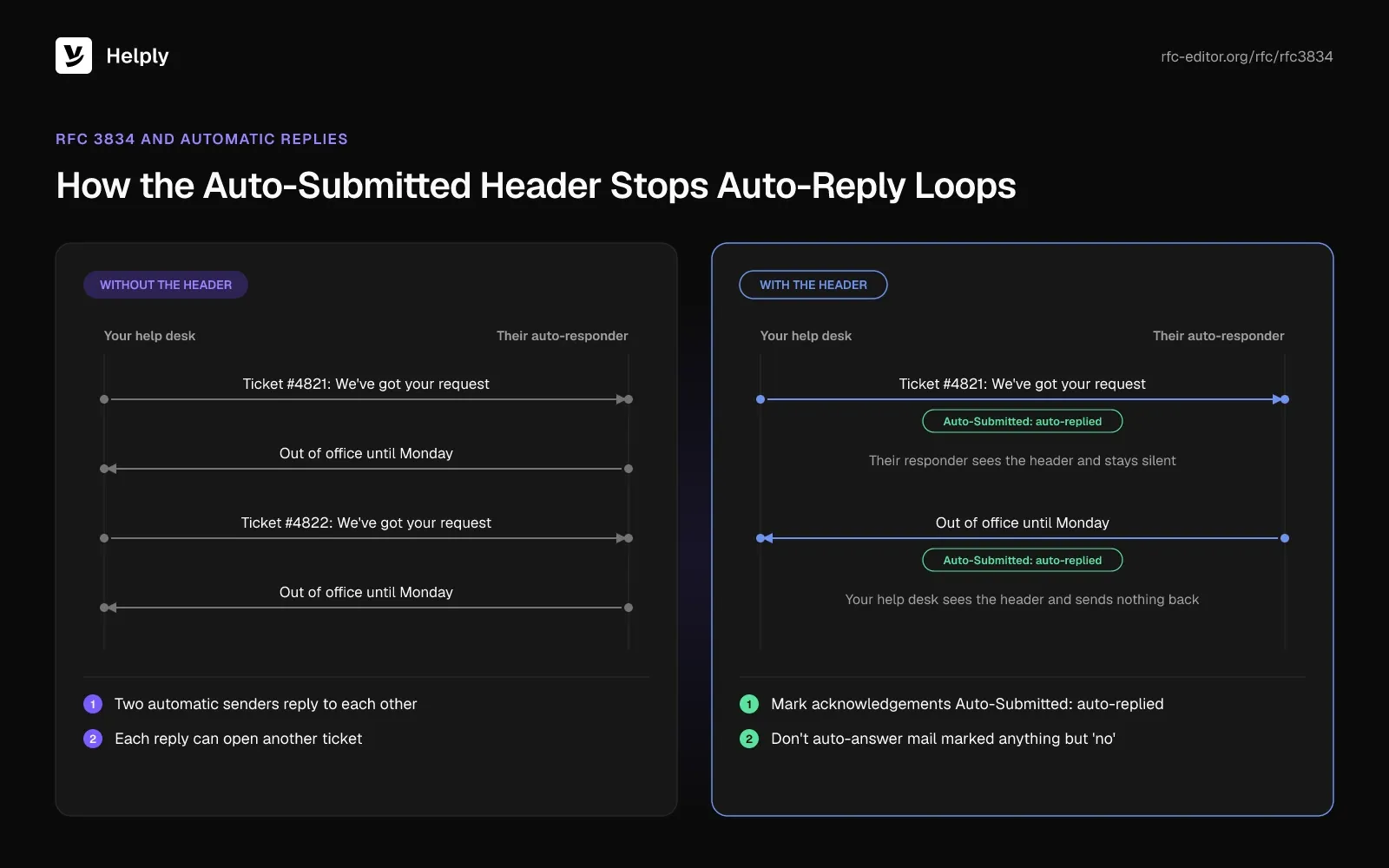
An acknowledgement that lands in another system's auto-responder can trade emails with it until someone notices. To prevent this, the email standard RFC 3834 says each automatic response should carry the "Auto-Submitted: auto-replied" header.
The same standard says responders shouldn't answer mail whose Auto-Submitted value is anything other than "no." Help Scout's Auto Reply skips emails that look like auto-replies, so check that your own help desk does the same.
Sending from a No-Reply Address
A no-reply sender blocks the easiest next step: replying with a screenshot or an order number. Send from the support address the ticket came in on.
Promising a Time You Can't Keep
If you promise "We'll reply within the hour" on a Friday night, you need someone on shift to keep it. Tie each window to your business hours or SLA, and switch on the high-volume delay template when the queue runs long.
Hiding the Ticket Number
If you put the ticket number in the footer, the customer may not find it later. Put it in the subject line and the first sentence.
Burying the Message Under Links
A customer who gets five help-center links hears "go away." Send one link for the most common question, plus the urgent route.
When an AI Agent Can Answer Instead of Acknowledging
An acknowledgement buys time. For a password reset, an order check or an invoice copy, the customer would rather have the answer in the same minute.
The Support Agent starts by checking your knowledge base, the customer's history and any tools you've connected. If it has the knowledge, context and confidence a request needs, it can reply in the customer's own channel. Otherwise, it escalates, and your team gets its investigation plus the customer's context.
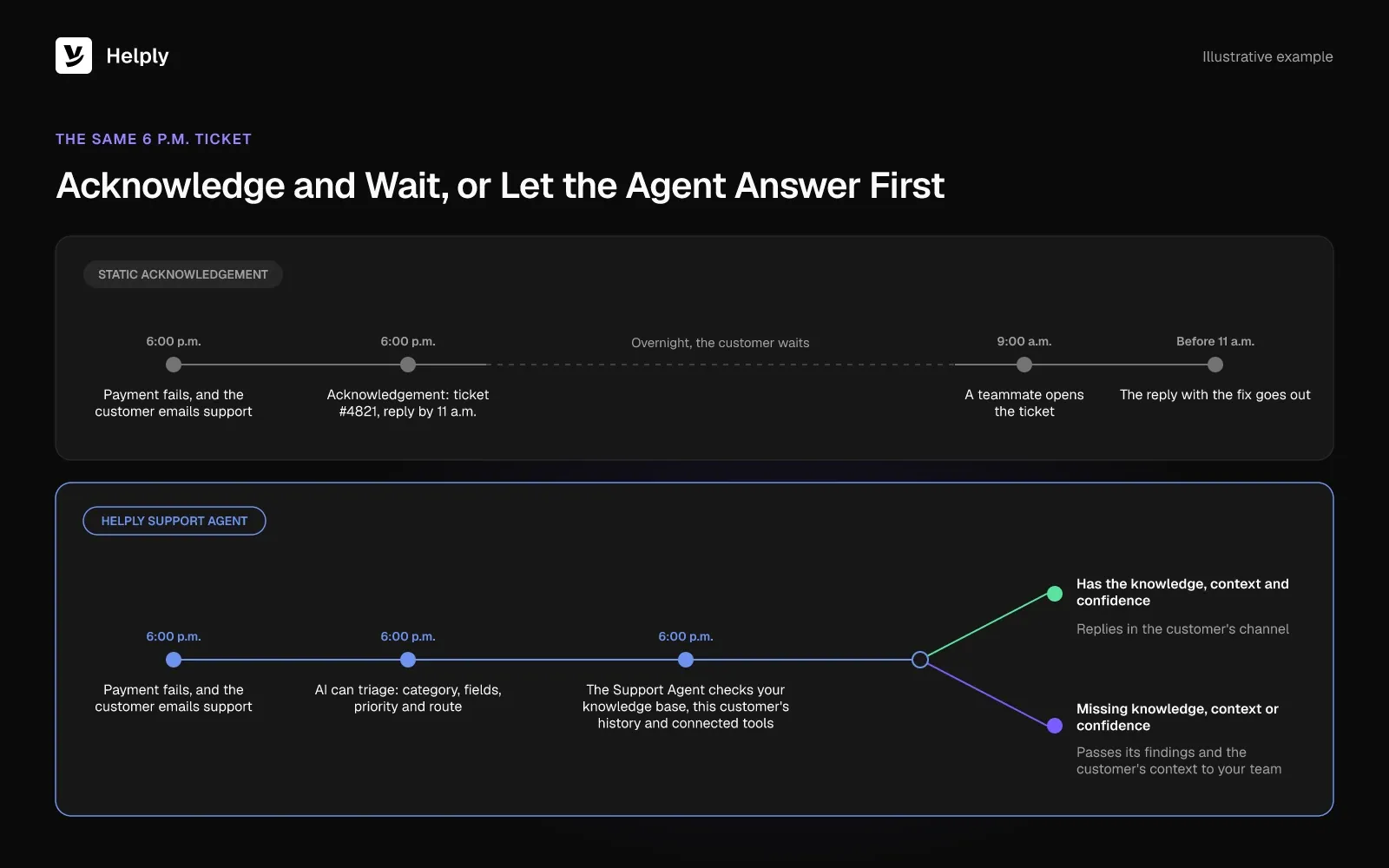
AI agents don't keep office hours, so the 6 p.m. payment question can get its answer at 6 p.m. Conversations that need a person reach your team with the history attached.
Zendesk published CX Trends 2027 in November 2026. In it, 81% of customers say they'd rather wait for a fix than get an instant reply that doesn't solve the problem.
Helply's AI can also sort each new conversation before a teammate opens it. It can set the category, fill fields, assign a priority and pick the route. An urgent billing ticket no longer has to wait behind a password reset.
For tickets that wait for a person, your team sets response and resolution targets in Helply to match the reply window you promise. Helply then puts conversations in priority order and flags what needs attention before anyone misses an SLA. The Assist Agent drafts replies to those tickets using the thread, customer context and your Guidelines.
Gatekeeper Press once ran support on people alone. As its author list grew, support became a bottleneck and responses lagged.
"Past three thousand authors that just doesn't scale, and a slow reply at formatting stalls someone's whole book," said Rob Price, CEO and founder of Gatekeeper Press.
Now the Support Agent checks a project's stage before it answers. It hands complex cases to the right specialist, along with the full context. Of Gatekeeper Press's 1,500-plus monthly author conversations, the agent resolved 92%, and around 120 a month went to a person.
Keep Static Acknowledgements, or Let an Agent Answer First?
If most of your tickets need a person's judgment, the 12 ticket acknowledgement email templates cover you. Load them into your help desk, tie every reply window to your SLA and reread them when your hours change.
If many tickets are order checks, password resets or other repeat questions, or come in after hours, let an agent answer those first. Helply's AI agents can triage, investigate and resolve supported email requests as they arrive, and pass the rest to your team. For the tickets that reach a person, set response targets your team can keep.
Either way, the customer who wrote at 6 p.m. can hear back that evening, without writing three more times. They get a ticket number and a time, or the answer itself.
On every Helply plan, the Support Agent and Assist Agent come included, along with AI credits shared by the whole team. SLAs and escalations start on the Team plan. See Helply pricing for the full plan list.
Start with one inbox. Hand the first reply to the Support Agent there, and compare reply times before and after. Rob Price of Gatekeeper Press said, "Helply was simple to set up and it's become a phenomenal tool."
Frequently asked questions
Zendesk, Freshdesk, Help Scout, Zoho Desk and Jira Service Management can all send one from a built-in setting. Zendesk uses a standard trigger, Freshdesk a requester notification and Help Scout a per-inbox Auto Reply. Zoho Desk's notification rules start switched off, so turn on the "Receiving a new ticket" rule.
A ticket acknowledgement email should confirm the request arrived, give the ticket number and name a reply window your team can keep. Then add a way to send more details, one self-serve link and an urgent route.
Set your help desk to send one acknowledgement per new ticket, with the ticket ID and a reply window you can keep. Then send a test request from a personal address to check that it arrives.
Use short phrases that name the ticket and the wait. Try "Your message reached our support team," "We've logged it as ticket [#ID]" and "Someone will reply by [time]." Add "Reply to this email to add details" and "If it can't wait, call [number]."
Yes, because the receipt should arrive within seconds of the ticket. For complaints, keep the rule but sign the email with the person who will own the reply.
Send it the moment the ticket exists, from an automated rule. In HubSpot Research's 2018 survey of 1,000 consumers, 60% defined "immediate" as 10 minutes or less for a support question.
A good subject line carries the ticket ID and the customer's topic, such as "We've got your request #4821: Payment failed." Leave out "Do not reply" and "Automated message," since both tell the customer to expect nothing useful.
An auto-reply is any automatic email, including out-of-office messages. A ticket acknowledgement is the automatic email tied to one new ticket, with its number and a reply window.
No, send one per new ticket. Help Scout's Auto Reply answers only a conversation's first email and reaches each address at most once in 24 hours by default.
Check that your help desk follows RFC 3834, the email standard for automatic responses. Each acknowledgement should carry an Auto-Submitted header other than "no," and the standard recommends "auto-replied." The help desk shouldn't auto-answer mail marked anything but "no."
For many tickets, yes: with enough knowledge, context and confidence, Helply's Support Agent can reply with the answer instead of a receipt. Otherwise, it escalates to your team with context. At Gatekeeper Press, it resolved 92% of over 1,500 monthly author conversations.
About the author

Konrad Janczyk
Staff Software Developer


